
Add documents
Upload files to your workspace’s shared Documents library.
Step-by-step guide
Open Documents
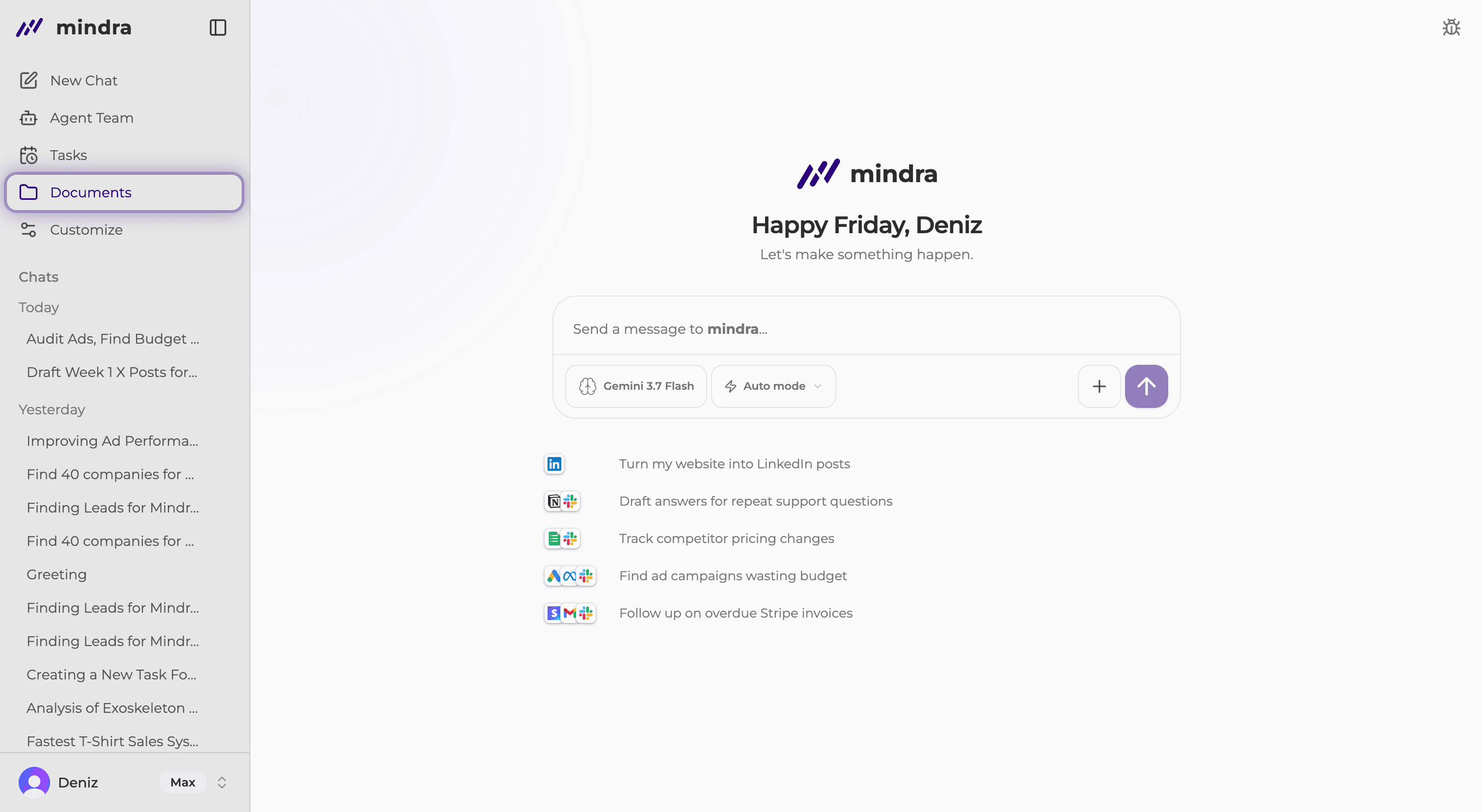
Use an owner or admin account when you need to create a folder or upload files.
Select New Folder
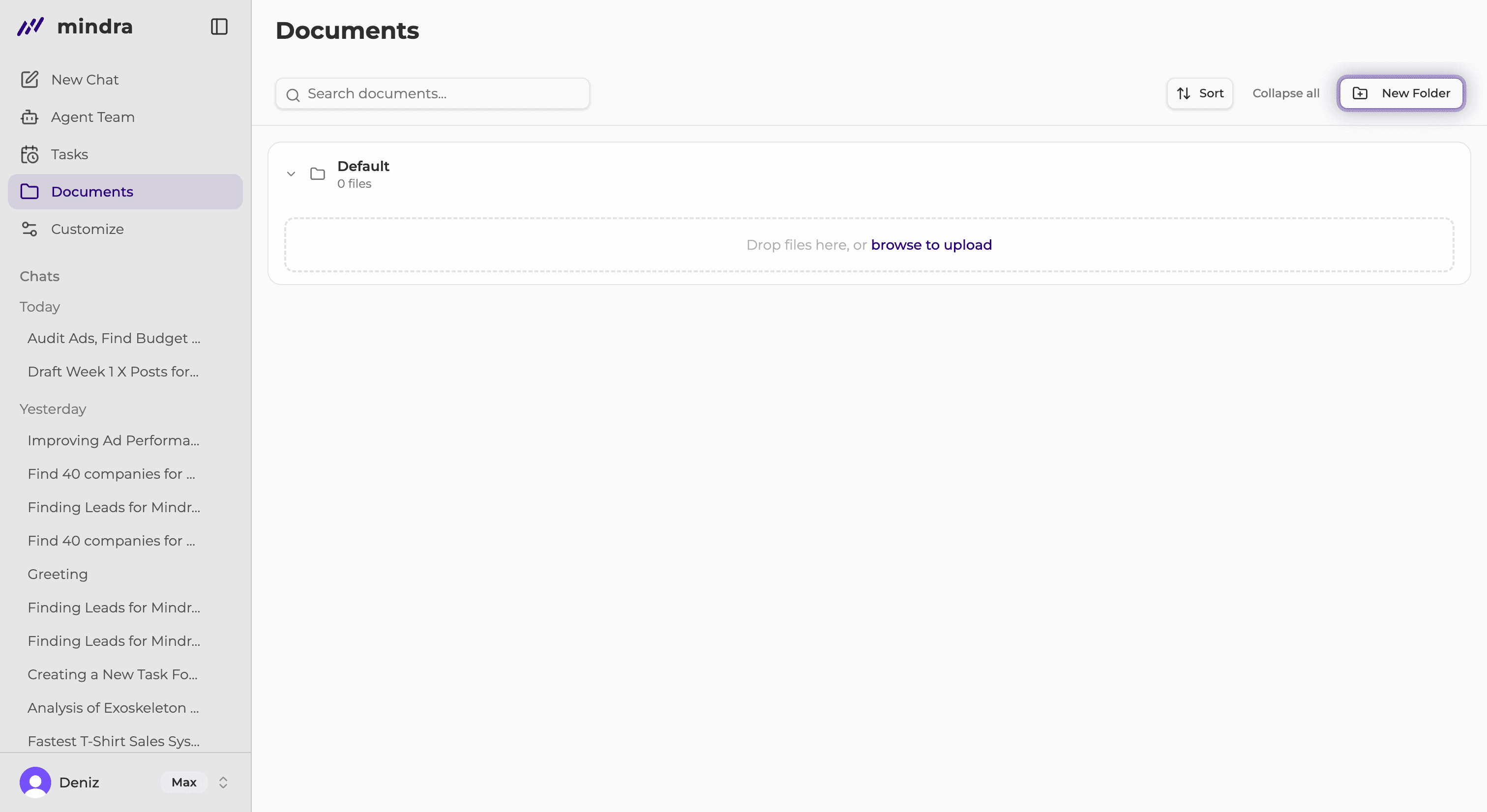
Enter a unique Folder name and select Create. Skip this step when the correct folder already exists.
Add your files
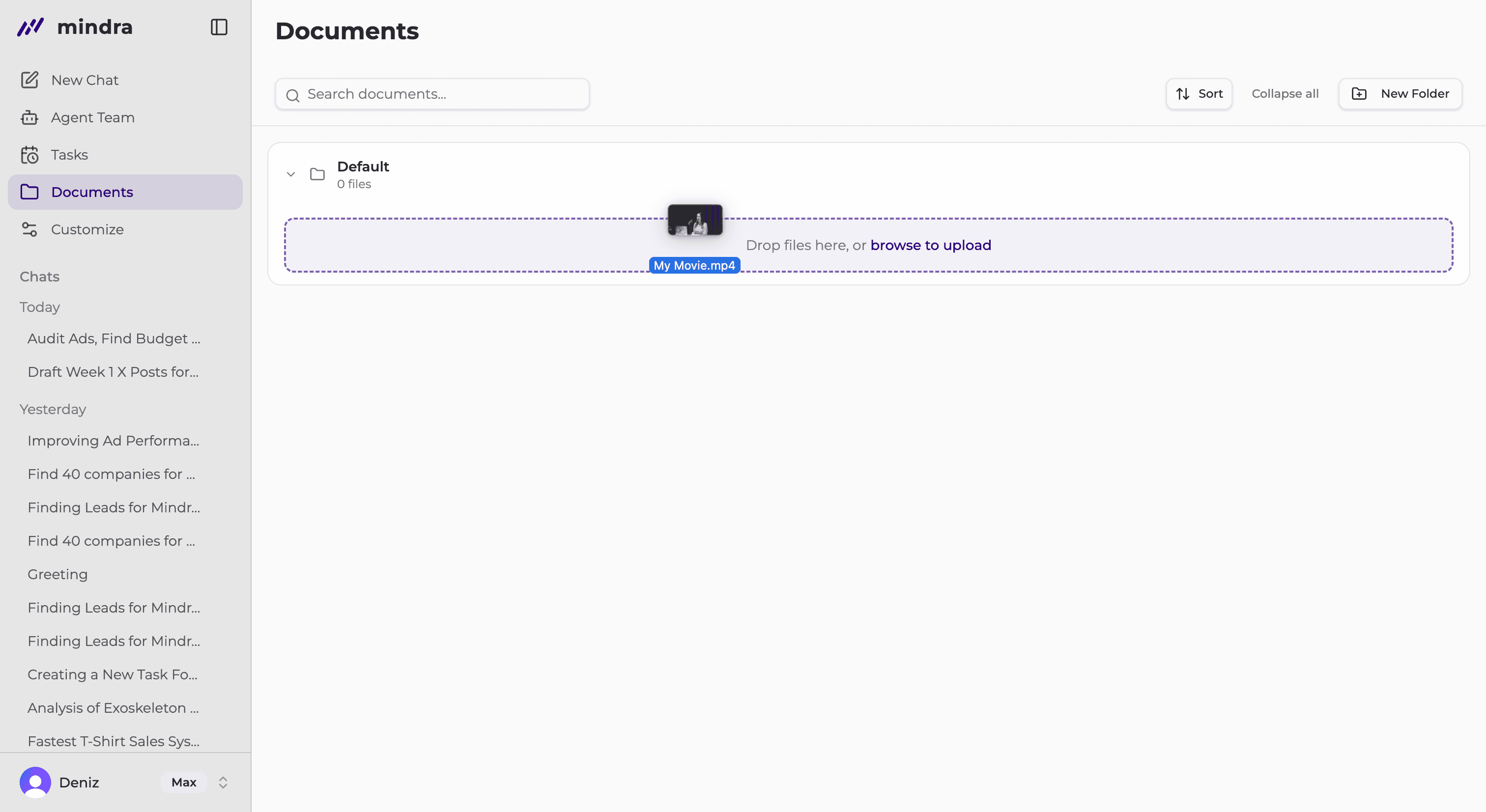
Drop files into the upload area or select browse to upload. You can select more than one file.
Wait for Processing to finish
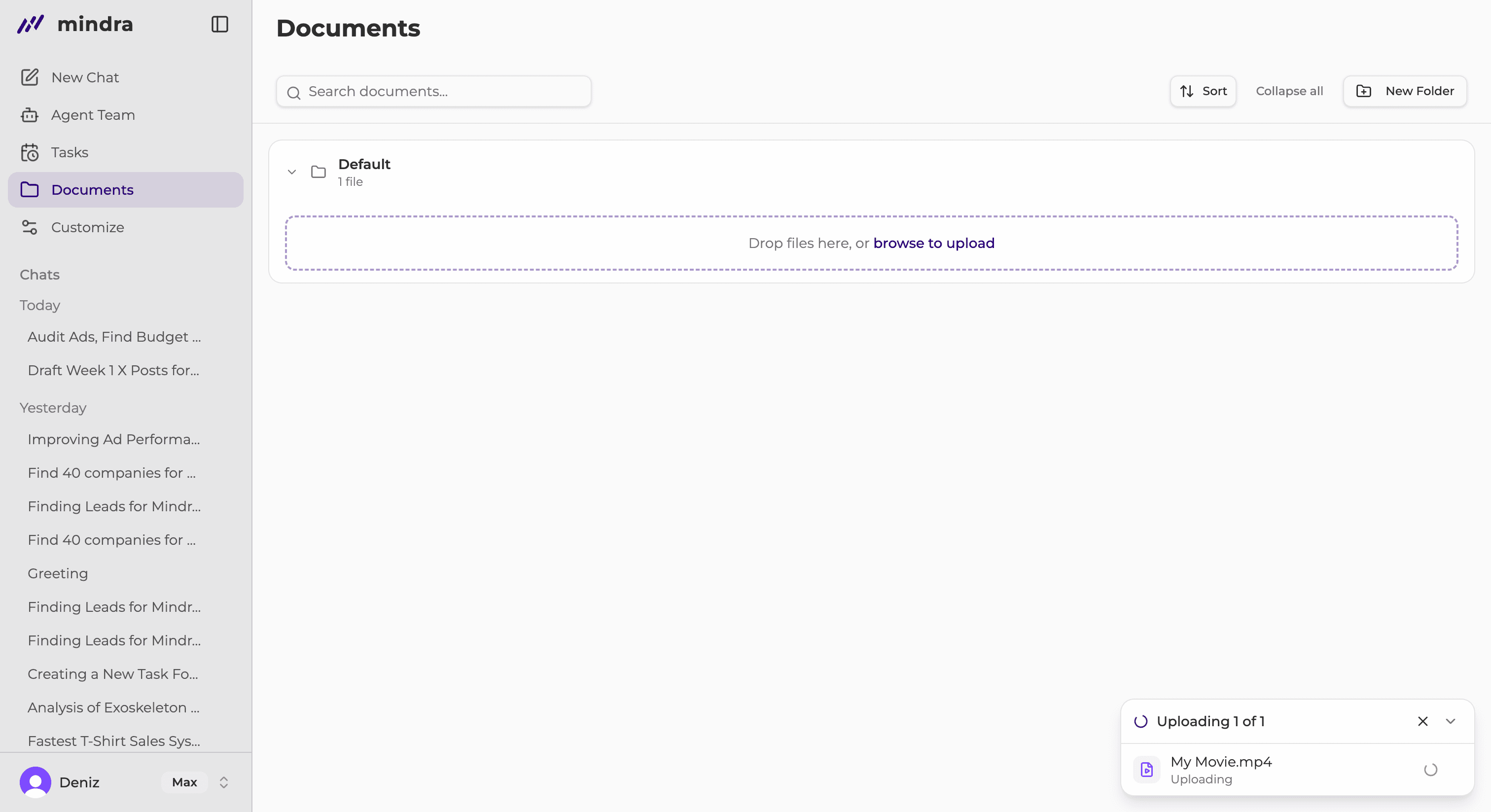
Keep the page open while the upload is processing. Larger files can take longer.
Use shared documents in a chat
In the chat composer, select + and then Search documents to use files from the shared library.
Attach files adds a file only to the current chat. It does not add the file to the Documents library.
Upload limits
- The maximum file size is 250 MB.
- Videos can be up to 30 minutes long.
- Your workspace storage allowance still applies.
You’re done when...
The file appears in the intended folder with an Uploaded status.
Troubleshooting
The folder name is rejected
Choose a unique name using letters, numbers, spaces, hyphens, underscores, or dots.
The file is too large or unsupported
Choose a supported file under 250 MB. Shorten videos longer than 30 minutes.
Processing ends in Failed
Review the reported error, correct the file or storage issue, and upload the file again.