
Start a chat
Send your first message and find the saved conversation later.
Step-by-step guide
Select New Chat
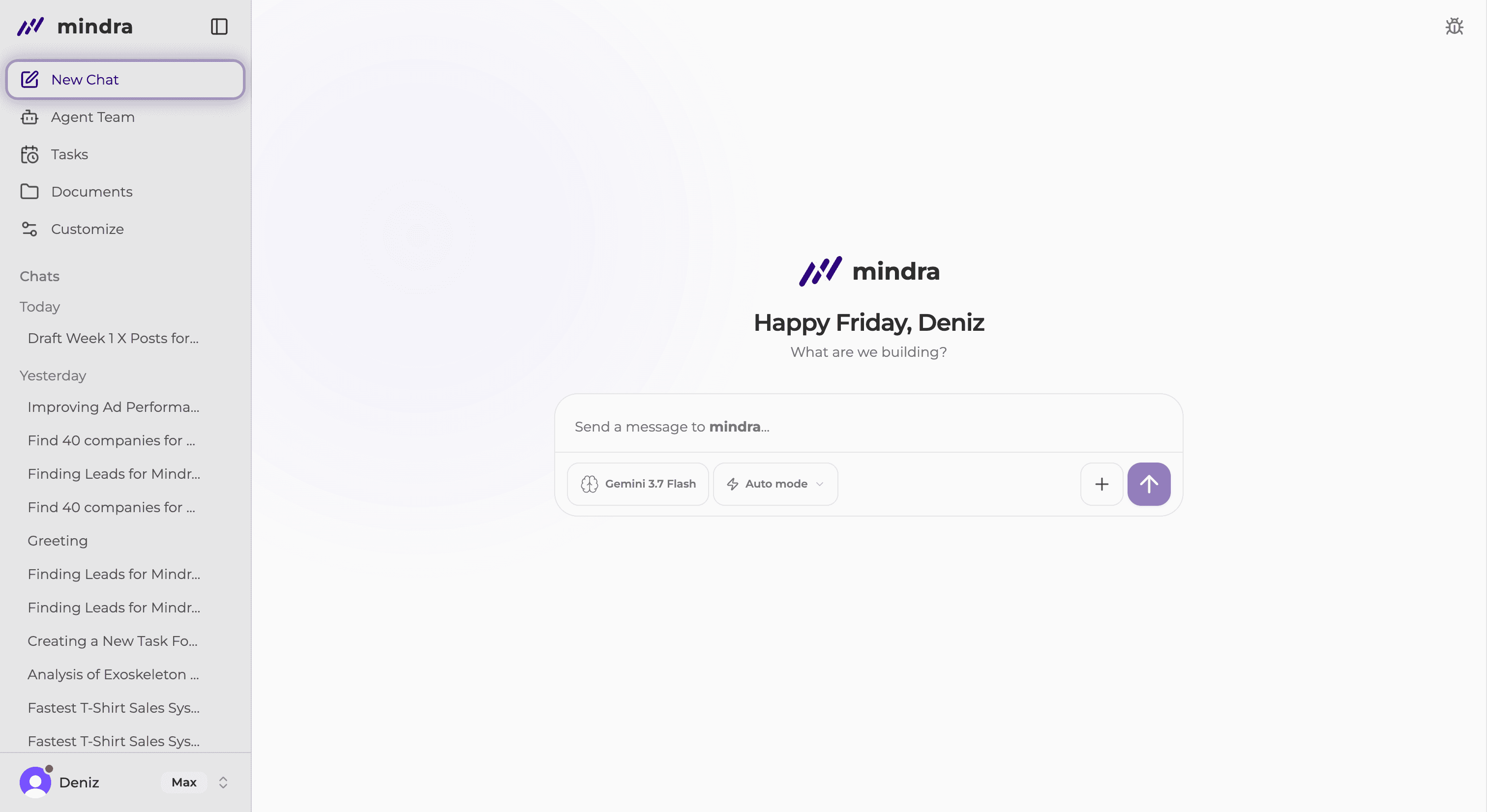
Enter your request
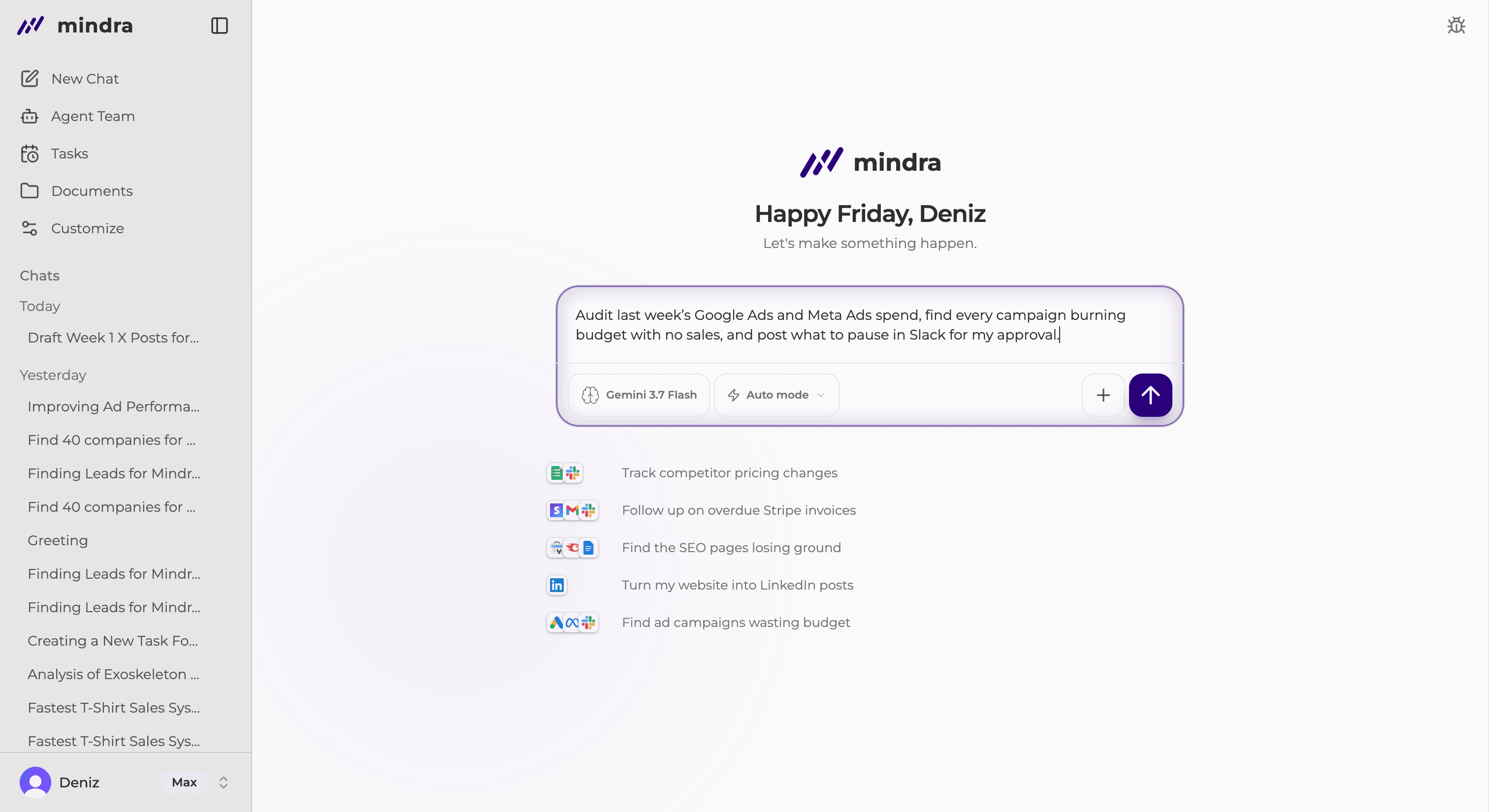
Describe the result you want in the Send a message to Mindra field. Add any context Mindra should use.
Send the message
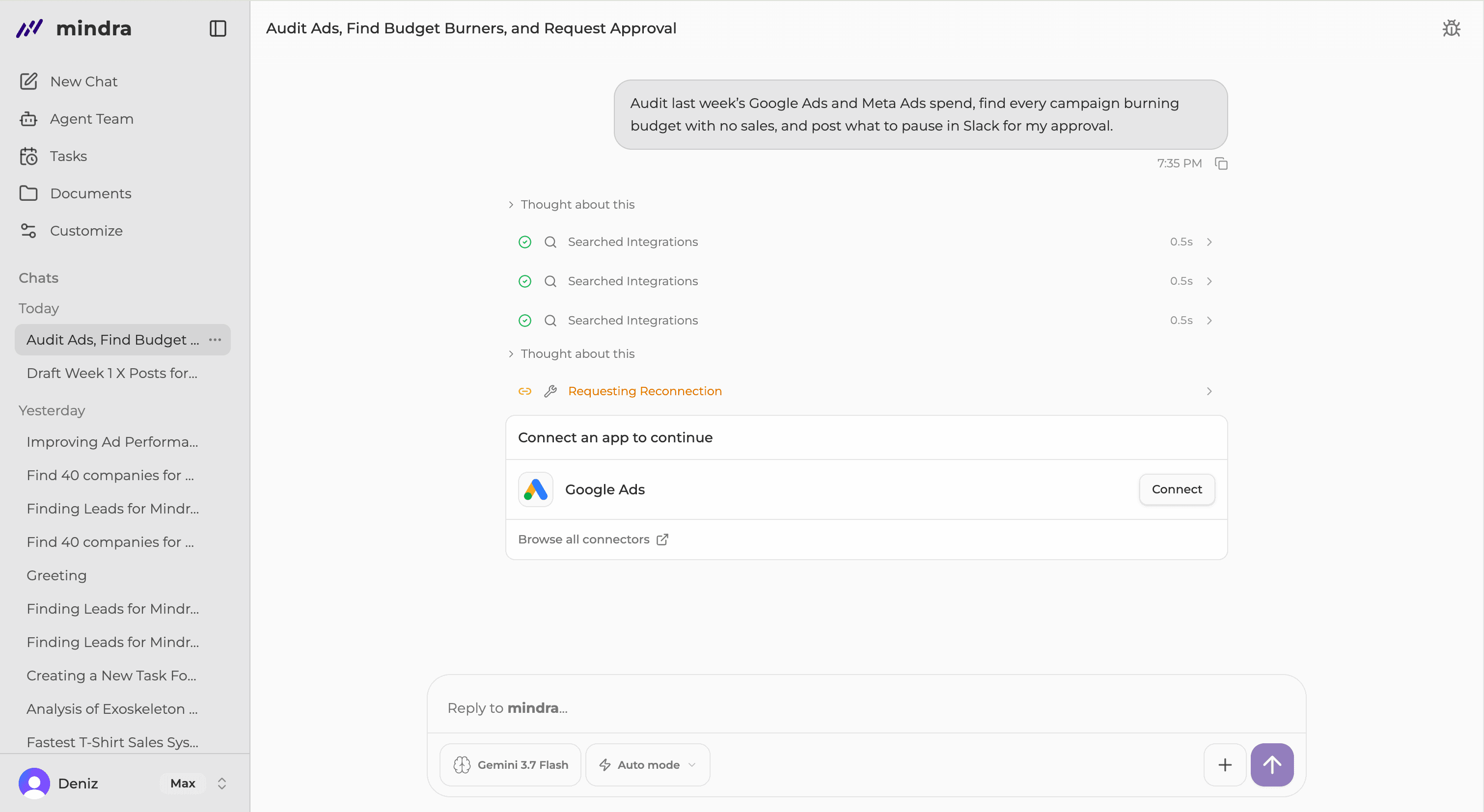
Press Enter or select Send message. Mindra starts responding as soon as the message is accepted.
Find the chat under Chats
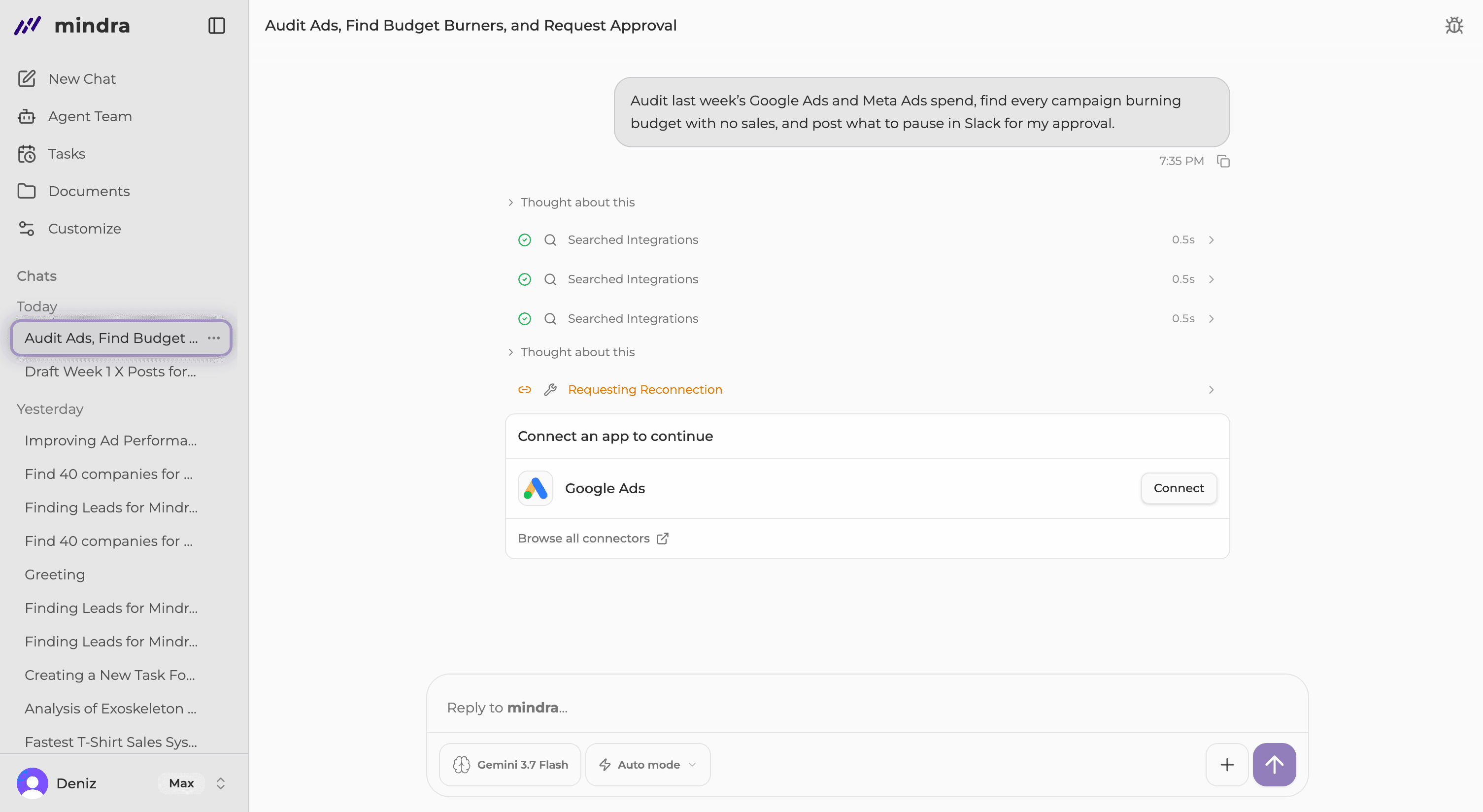
The conversation is saved automatically. You can also begin from Chats by selecting New chat.
You’re done when...
Your message is visible, Mindra starts responding, and the conversation appears under Chats.
Troubleshooting
Send message is unavailable
Wait for the current response or upload to finish. Resolve any approval already waiting in the conversation.
A plan or credit message appears
The conversation can open without credits, but Mindra cannot run the first message until the workspace can spend credits.
The chat is not listed yet
Make sure the first message was accepted, then refresh Chats. An empty draft is not saved as a conversation.