
Schedule a task
Create a task that runs at the time and cadence you choose.
Ask Mindra
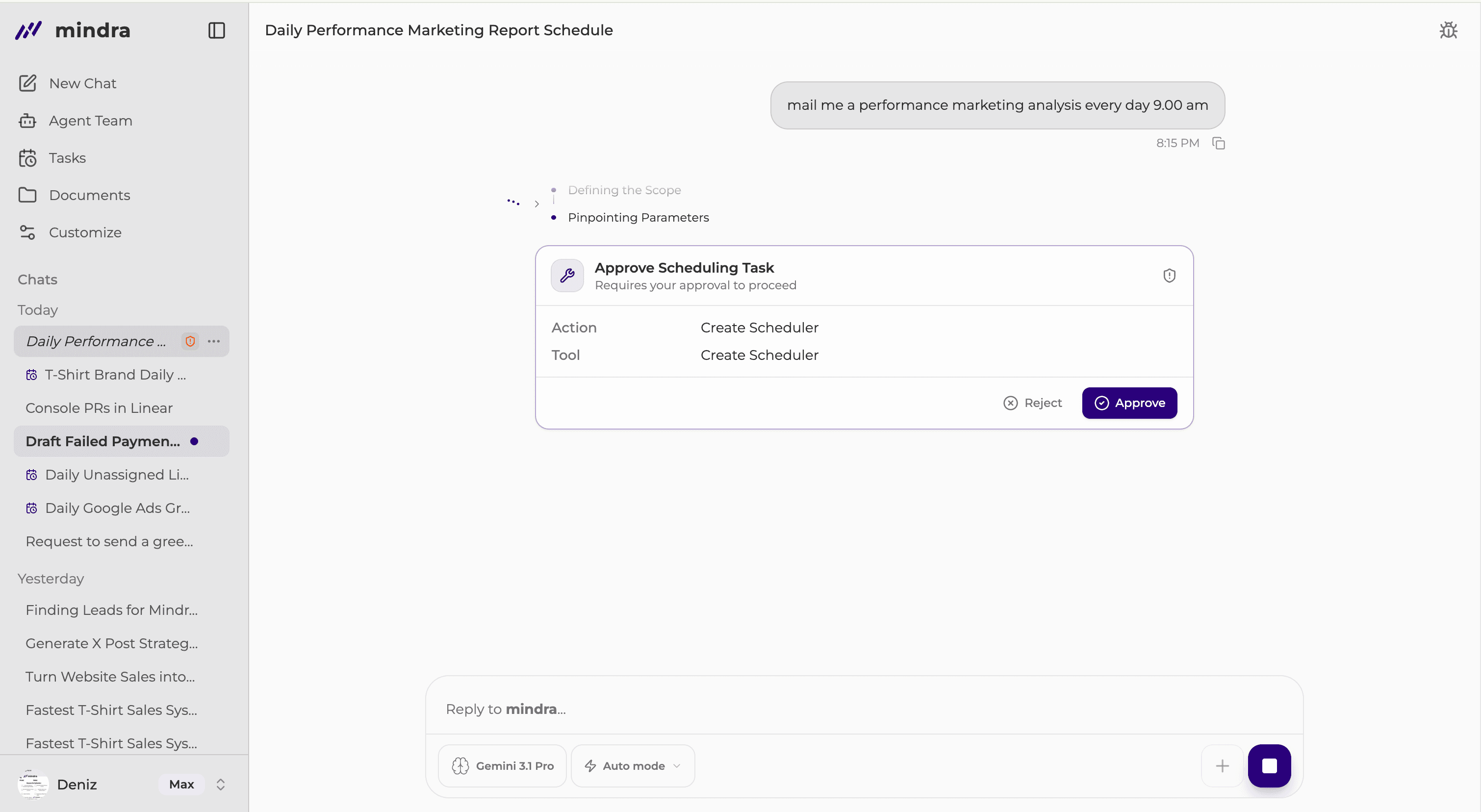
Schedule with Mindra
From any chat, tell Mindra what should happen and when. You do not need to open Tasks first.
Mindra asks for missing details, shows the schedule approval card, and creates the task after you approve it.
Schedule from Tasks
Open Tasks
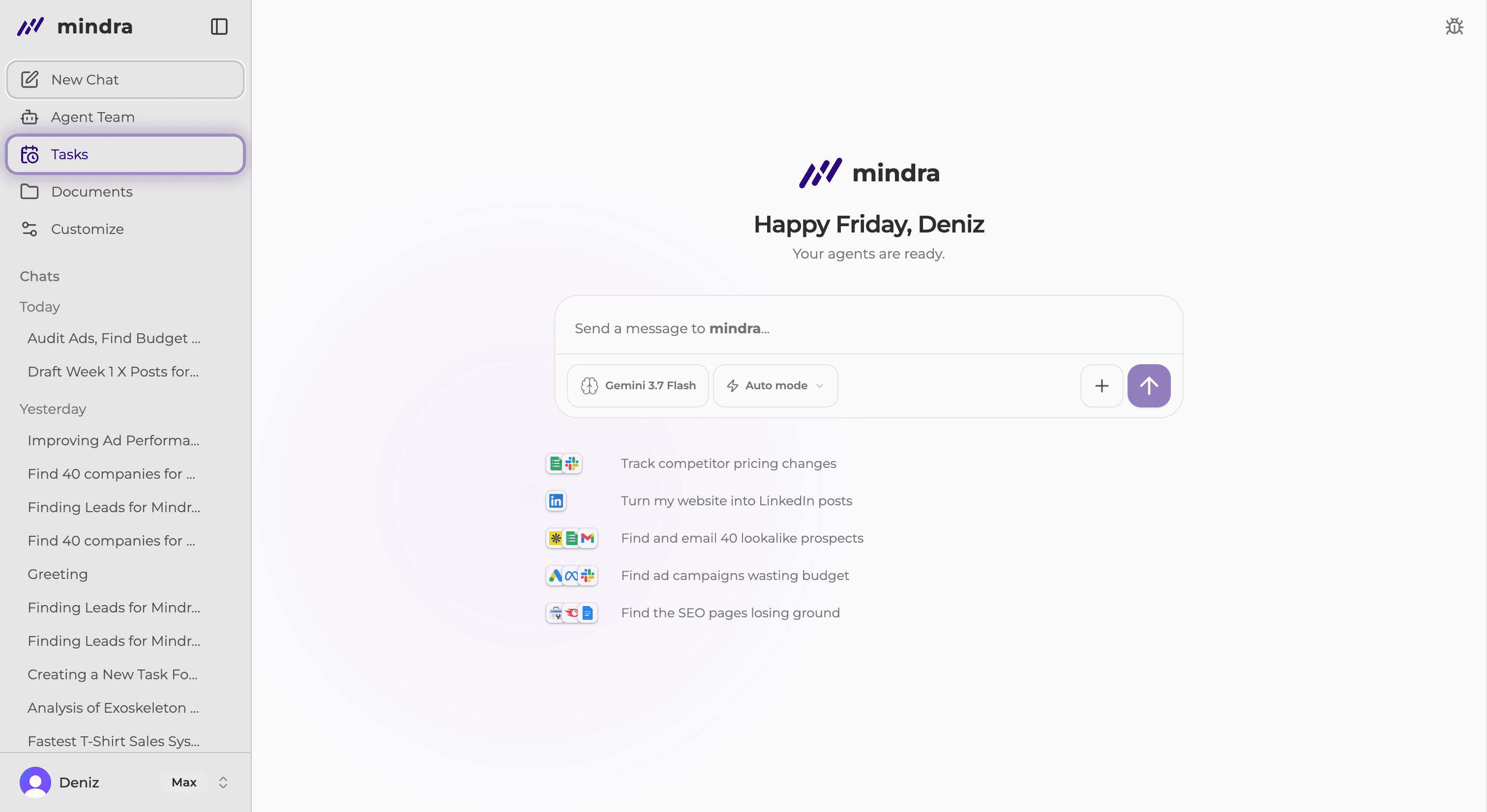
Click New Task
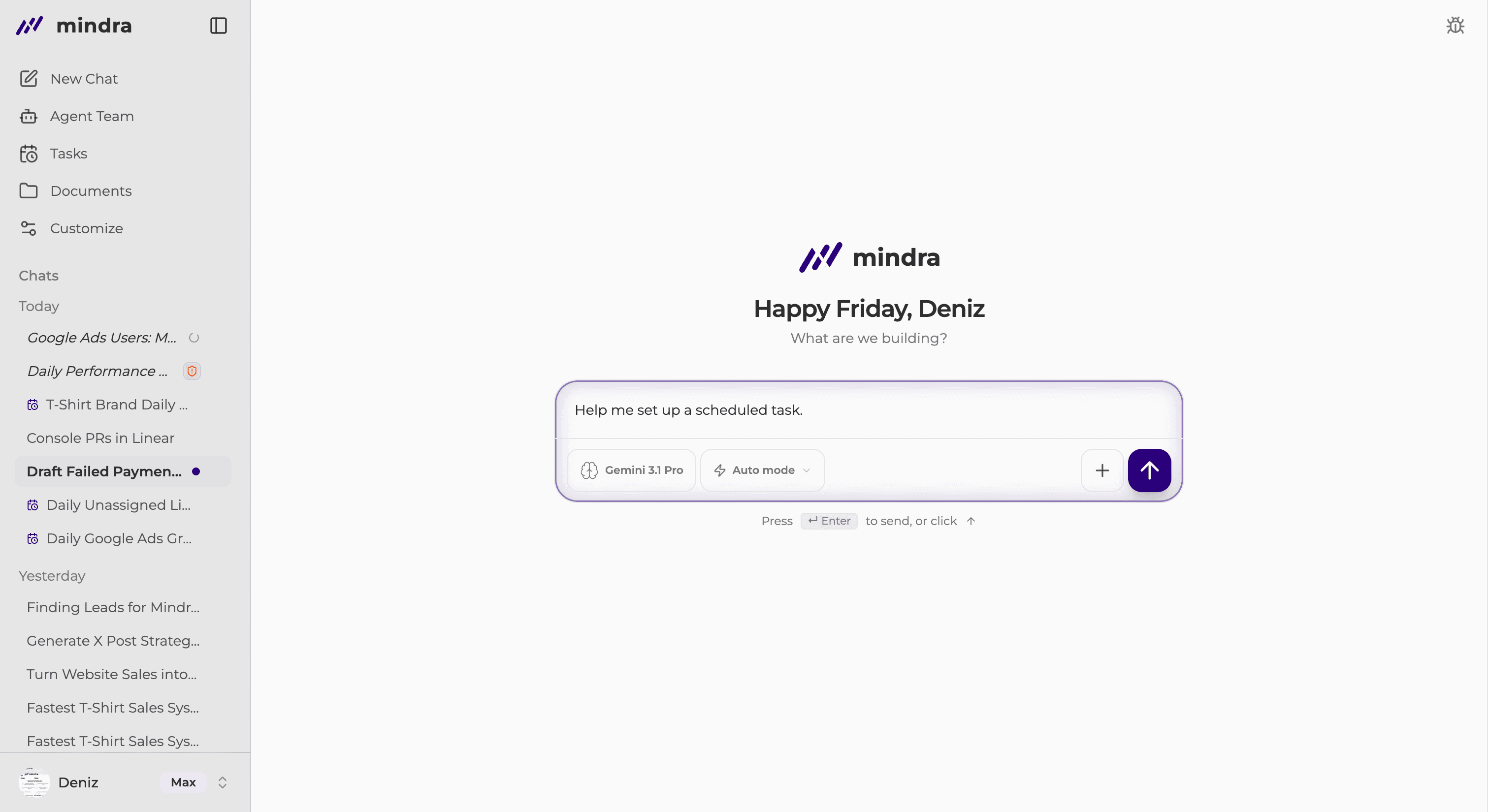
A new chat opens with prepared text. Describe both the work and timing. For example: Every weekday at 9 AM, summarize my upcoming meetings and priorities. Answer follow-up questions and approve the schedule card.
Edit and View Your Schedules
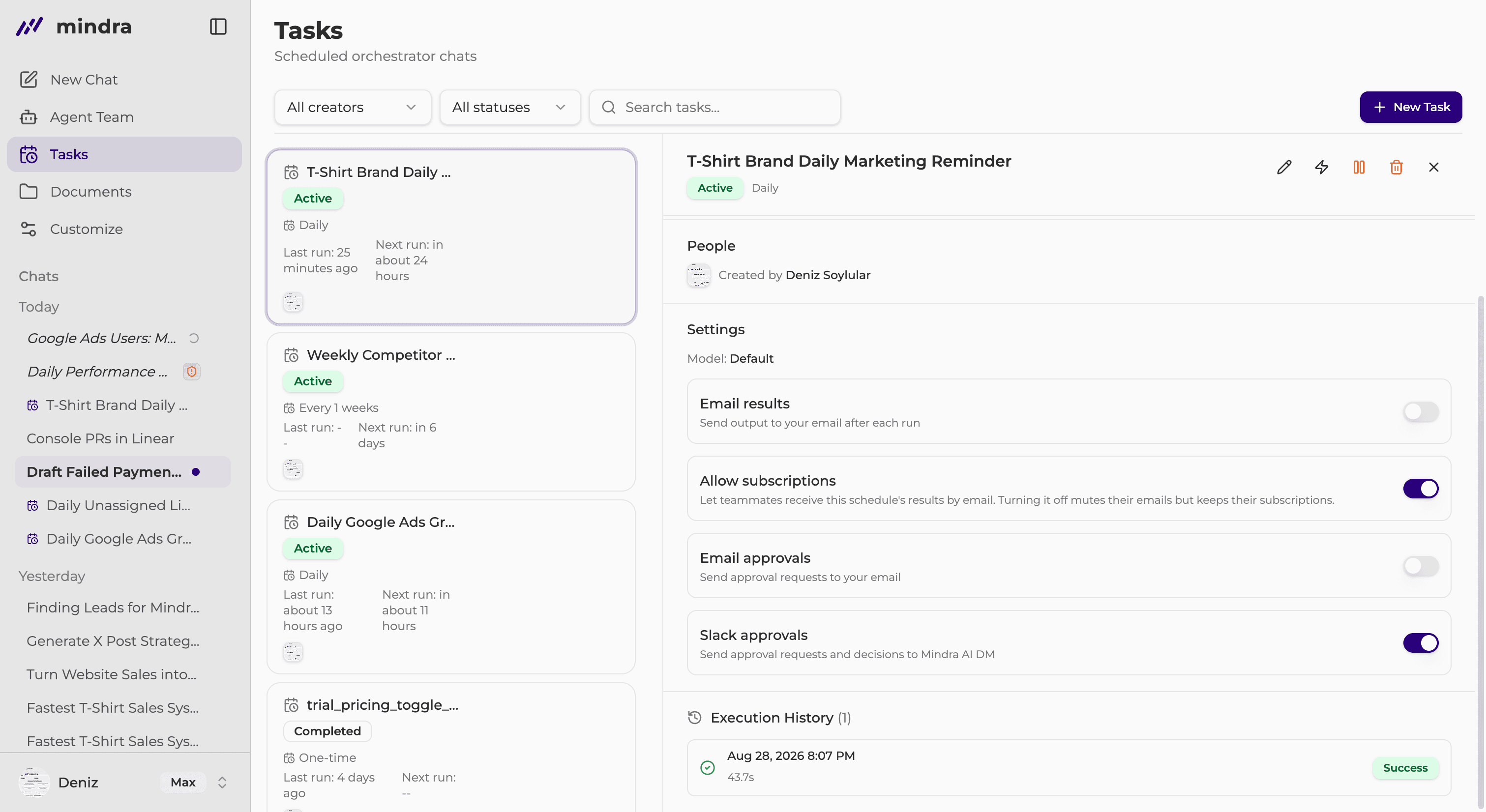
Select a task to review its settings and execution history. Confirm Schedule, Timezone, and Next run in Task Details. This is the authoritative timezone view.
Timezone
Always confirm the timezone in Task Details. The chat confirmation can omit it or show a fallback.
Who can manage the task
The member who created the task owns its management actions. Other members can see only the actions available to them.
You’re done when...
The task is Active, Next run is filled in, and Task Details shows the intended schedule and timezone.
Troubleshooting
The task name is already in use
Choose a different name or open the existing task before creating another one.
An app needs connection
Complete the requested connection, return to the chat, and continue the pending setup.
The task is paused
Restore available credits, then use the task owner’s controls to resume it.
The task is blocked by the plan
Ads and SEO tasks can require a different plan. Review plan information before trying again.