
Choose a model
Choose the model and Thinking level Mindra will use for your next message.
Step-by-step guide
Select the current model
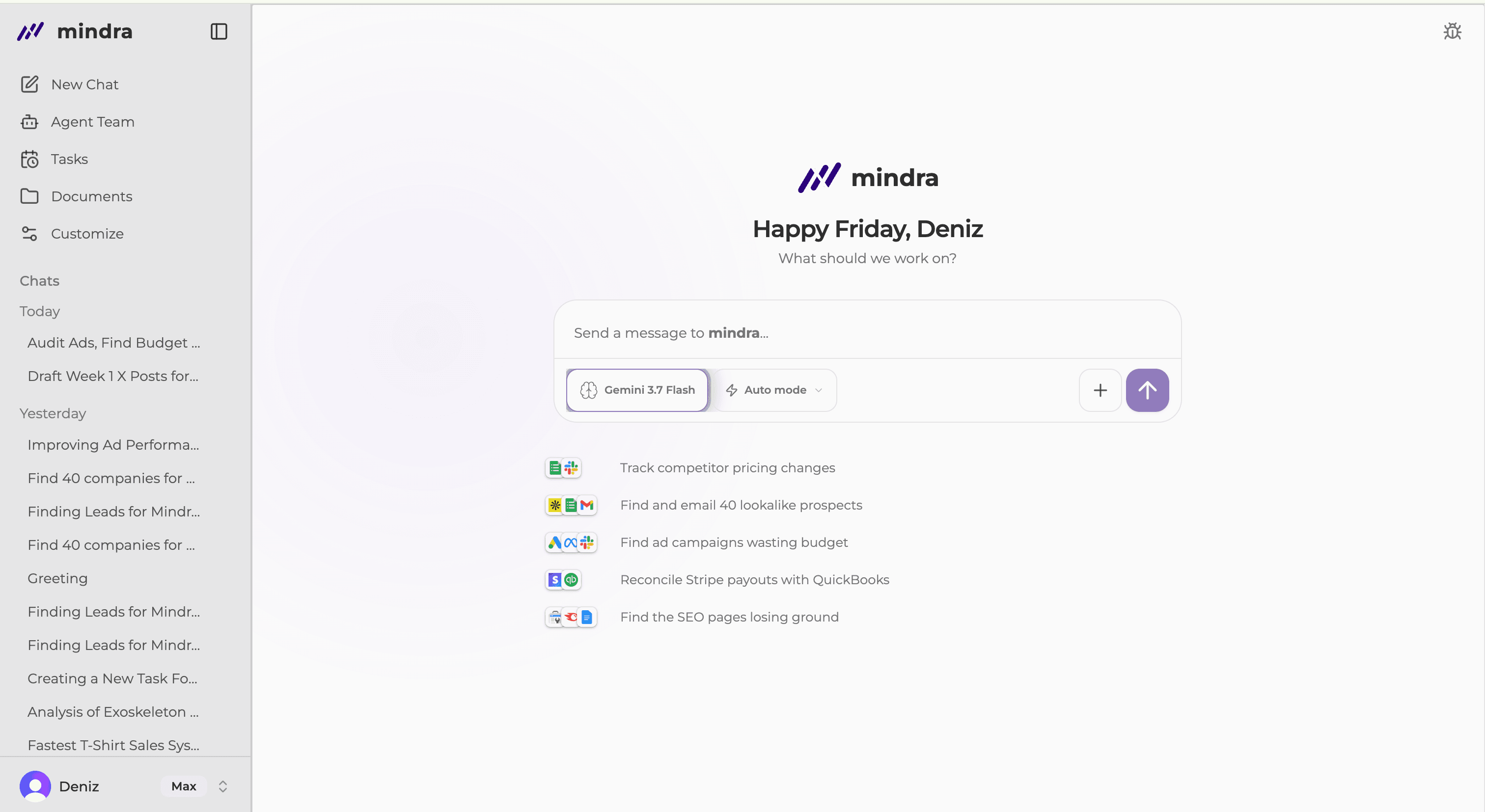
Use the brain icon or model name in the chat composer.
Choose an available chat model
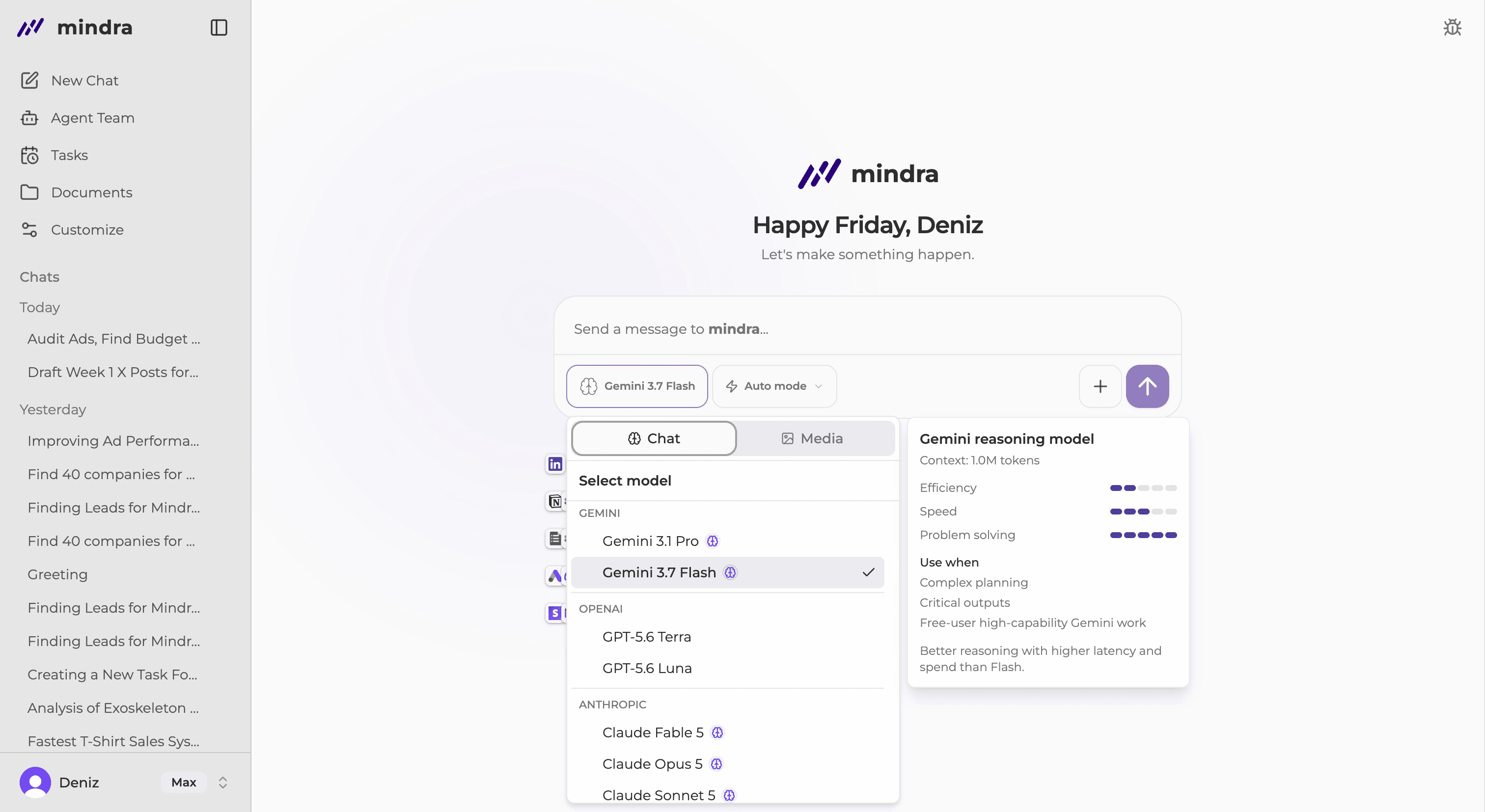
Open Chat and select an available model. A locked row opens plan information instead of changing the model.
Choose an available media model
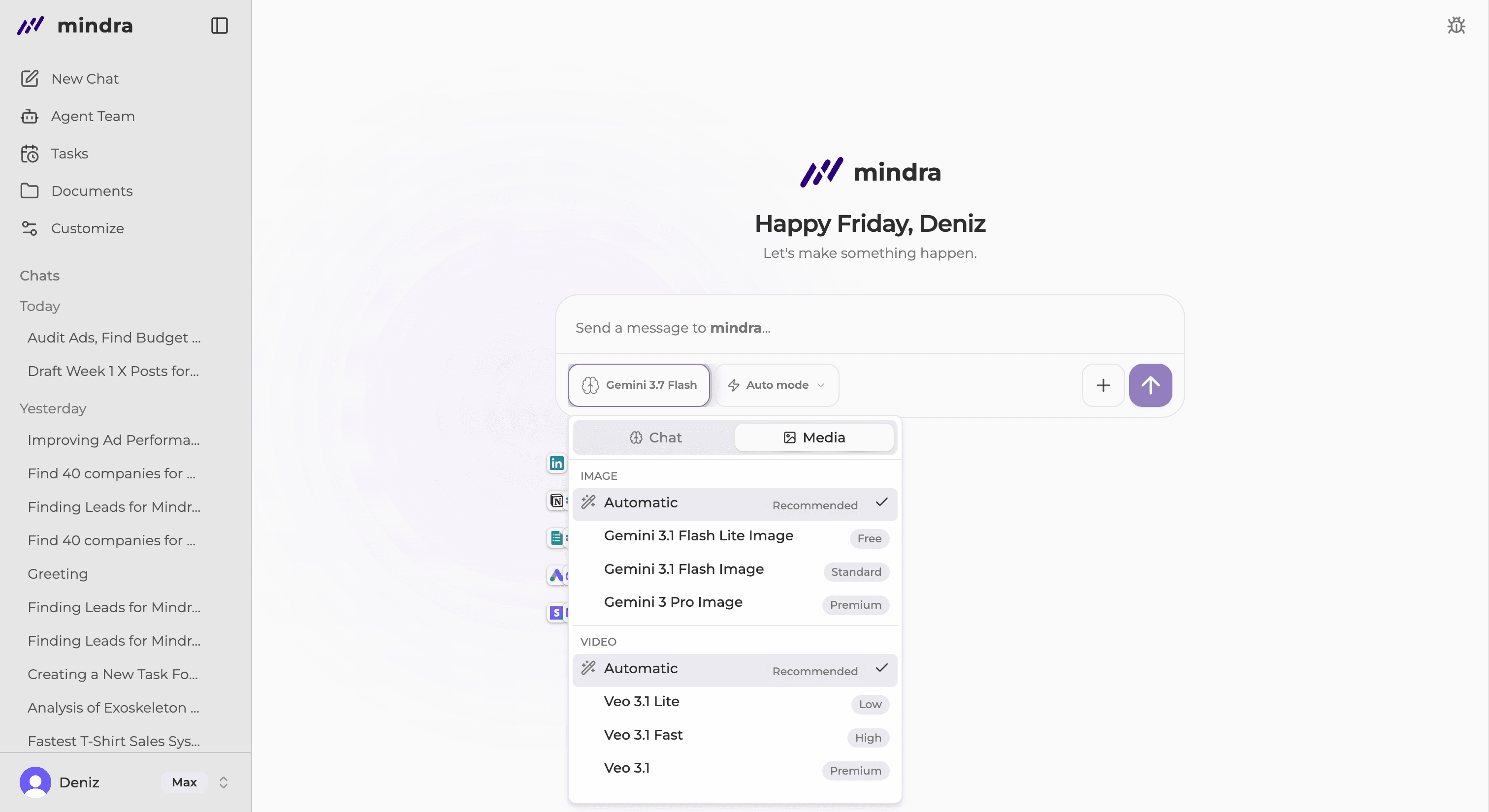
Open Media to choose an image or video model when the current plan includes it.
Choose a Thinking level
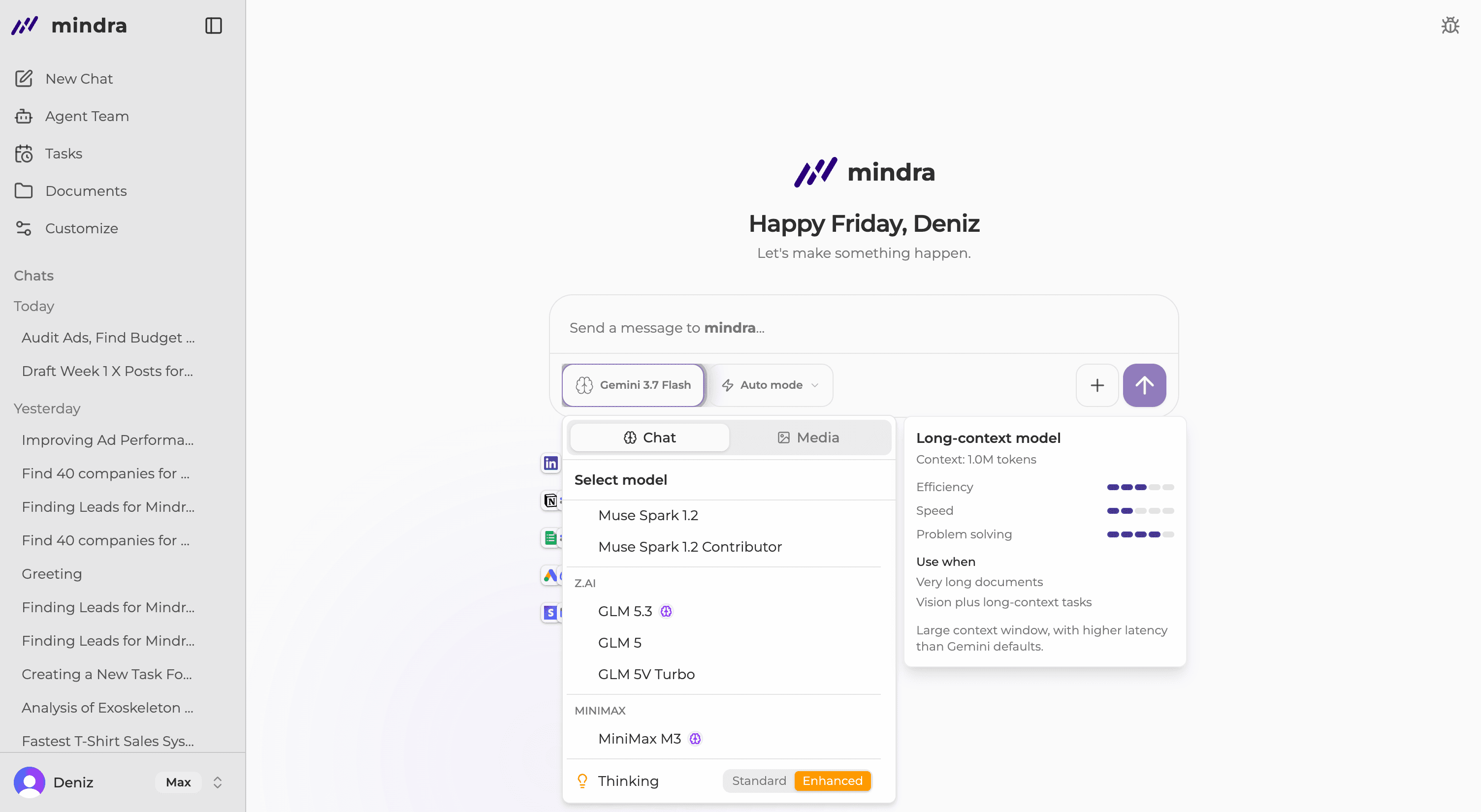
When supported, select Standard or Enhanced. Automatic describes Thinking behavior, not model routing.
What changes when you switch
- Changing the model during a response does not affect that response.
- The selection is saved for the current conversation while the model remains available.
- Switching models can reset an Enhanced Thinking choice to Standard.
Choose a media model
Open the same picker, select Media, then choose Image or Video. Availability depends on the current workspace plan.
You’re done when...
The chosen model name appears in the composer and is used for the next message.
Troubleshooting
The model is locked
The model is not included in the current workspace plan. Choose an available model or review the plan.
No models are available
Refresh the page. If the catalog remains empty, ask a workspace owner to check the plan or contact support.
Thinking is missing
Thinking controls depend on the selected model. Their absence does not mean the model selection failed.
The preference did not save
If Failed to save model preference appears, select the model again before sending the next message.