
Connect apps and custom tools
Connect a supported app or register a workspace-specific API or MCP tool.
Ask Mindra
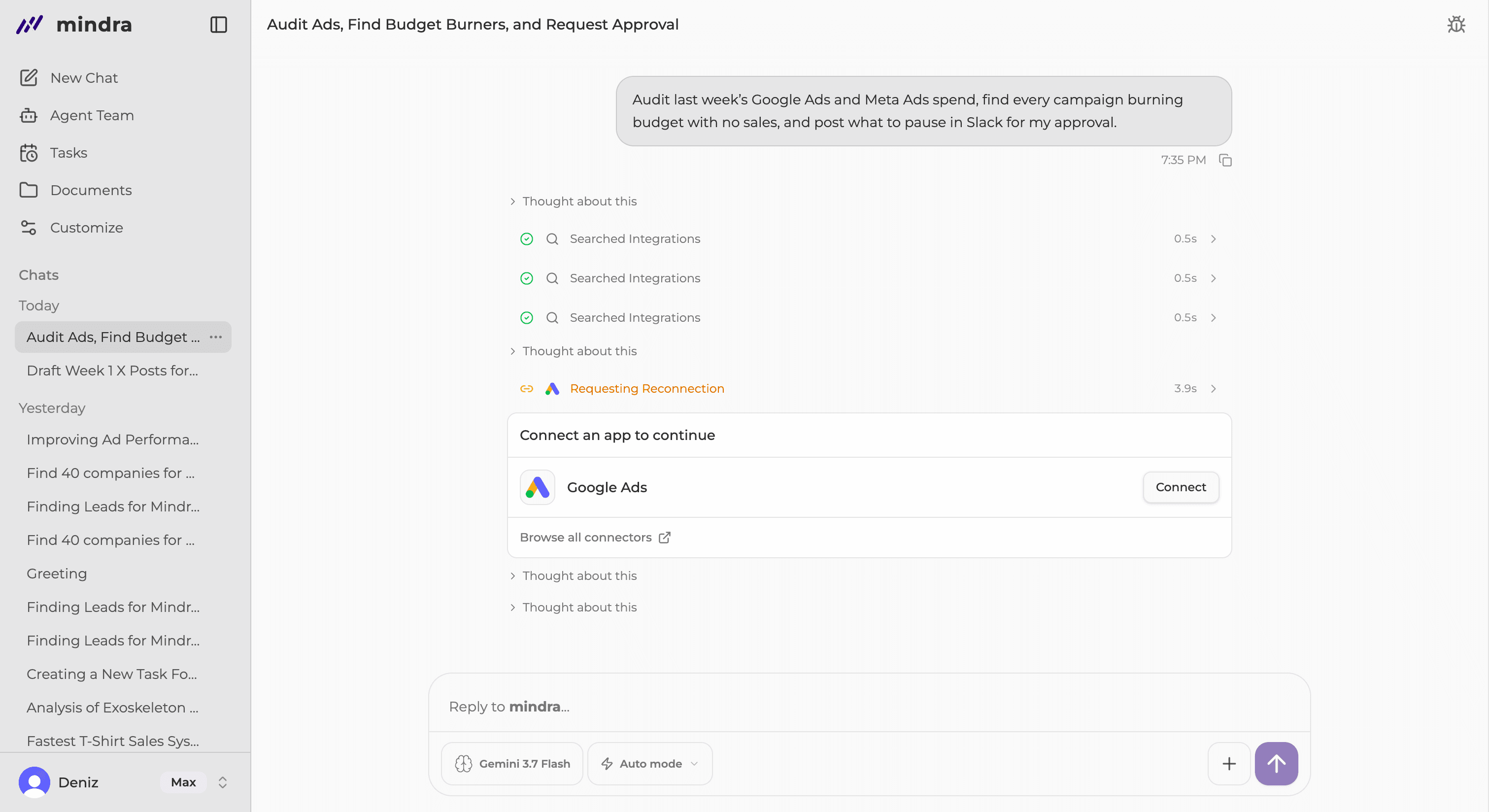
Connect when Mindra asks
Ask Mindra for the result you want. If the work needs a supported app you have not connected, Mindra shows a connection card in the chat, so you do not need to open Customize first.
Select Connect, approve the provider permissions, and return to the conversation. Mindra continues the pending request after the connection is ready.
Owners and admins still use Customize to define a new workspace-specific External Tool.
Connect from Customize
Open Customize → Connectors
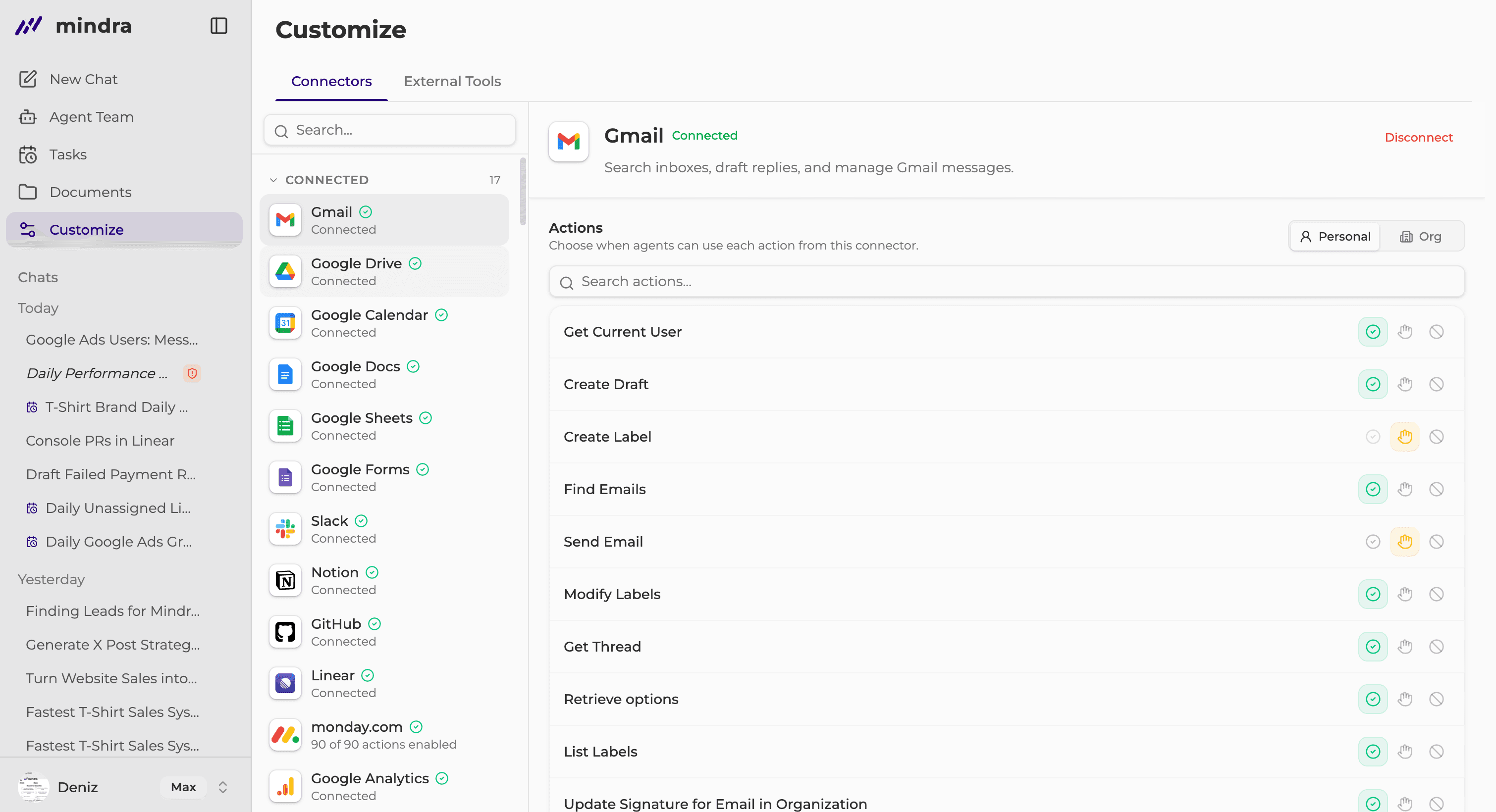
Select Connect
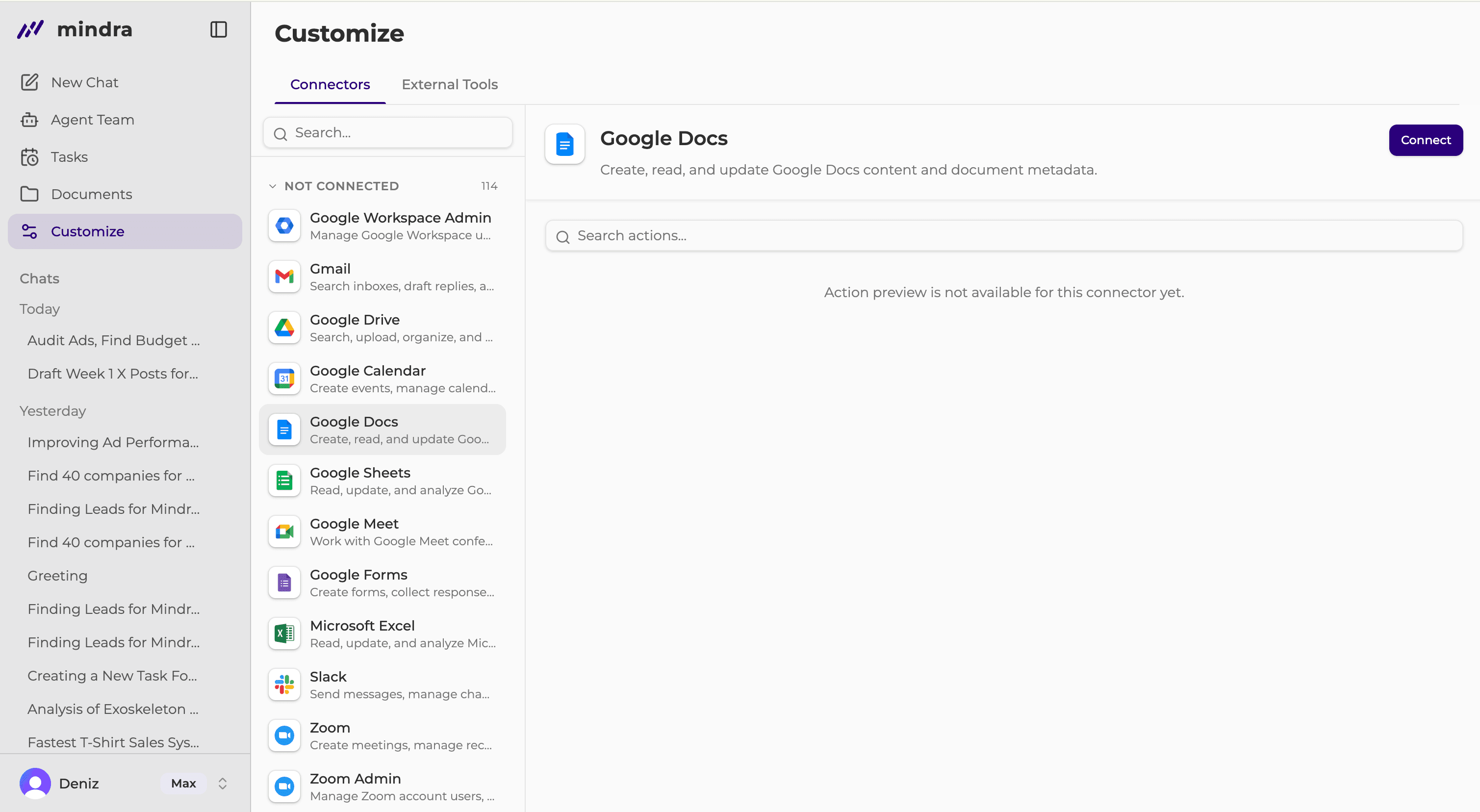
Search for the app or browse Not Connected, open its details, and select Connect. Approve the provider permissions, return to Mindra, and confirm Connected. Usable means actions are ready. Connected (no agent assigned) means the account is connected but no agent currently uses it.
Review Actions if needed
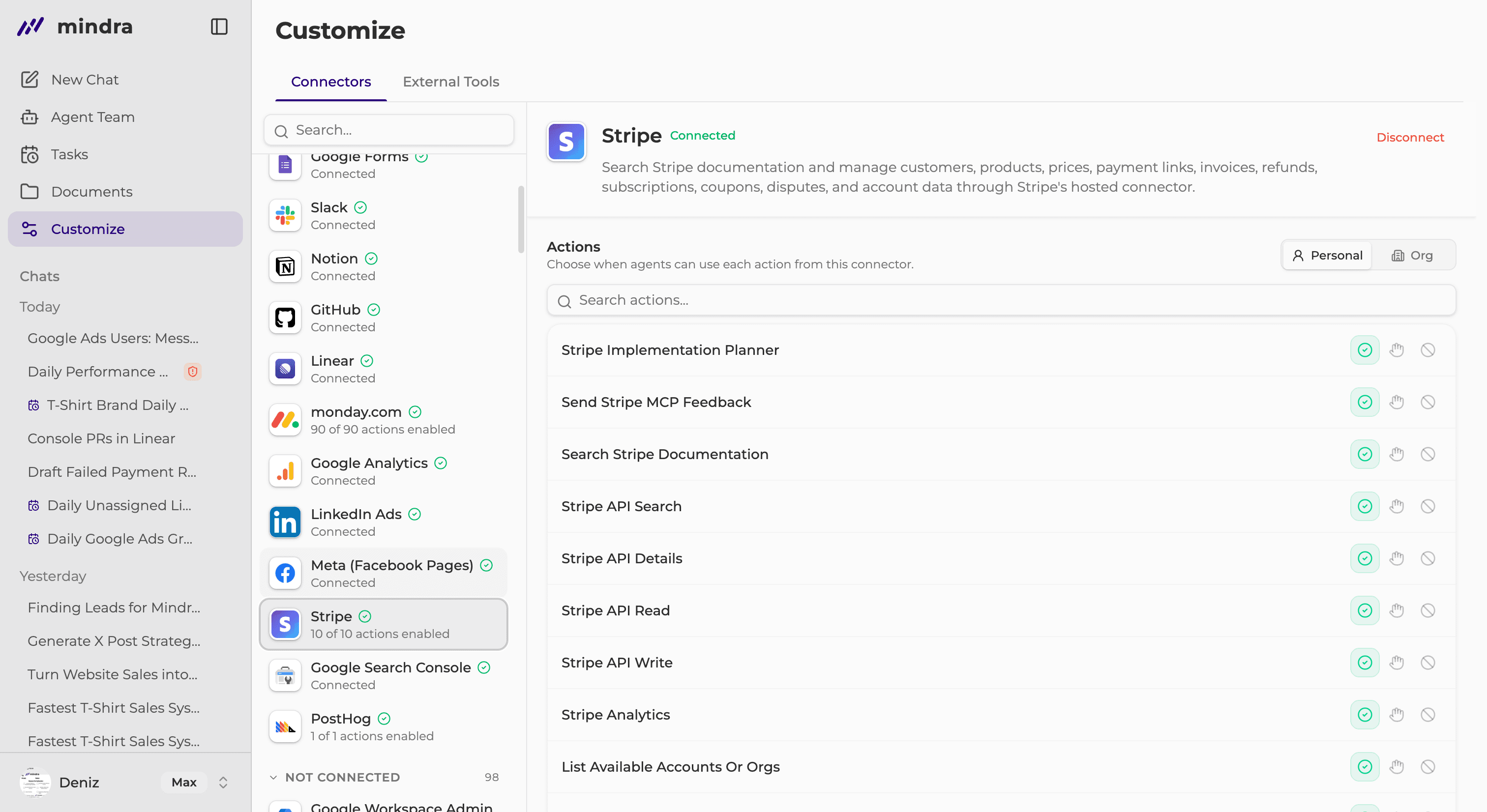
Personal and Org control approval policy. They do not describe who owns the connected account.
Connectors and External Tools
- Connectors
- Mindra-supported app connections. Each member connects their own provider account.
- External Tools
- Workspace-specific API or MCP definitions created by an owner or admin. Each member can have a separate connection state.
- Personal and Org
- Approval-policy scopes for actions, not credential ownership.
Add a custom MCP connector
- Open Customize → External Tools → Add custom tool.
- Choose MCP Connector, then Add MCP connector.
- Enter a name and an HTTPS Connector URL.
- Add OAuth client information only when the provider requires it.
- Create the connector, open its details, and select Connect.
Add an API-based External Tool
- Open Customize → External Tools → Add custom tool.
- Choose API Based External Tool, then Register API tool.
- Complete Basic Info and Authentication.
- Add at least one operation.
- Register the tool, open its details, and select Connect.
You’re done when...
The supported app appears under Connected, or the custom tool appears in External Tools and is connected for you.
Troubleshooting
Reconnect required
Select Reconnect and approve the current permissions. The previous grant may be expired, revoked, or missing a scope.
Connected · Upgrade required
The saved connection remains listed but cannot run while the connector is outside the current plan.
Ask an admin to create a connector
Only an owner or admin can define an External Tool. Members can connect it after the definition exists.
Admin setup needed, Degraded, or Down
Ask an owner or admin to finish setup or review the tool’s health status.
A personal approval level is rejected
A personal setting can match or tighten the organization baseline, but it cannot make an action more permissive.