Use Mindra in Slack
Connect Slack and use Mindra from channels, threads, and direct messages.
Ask Mindra
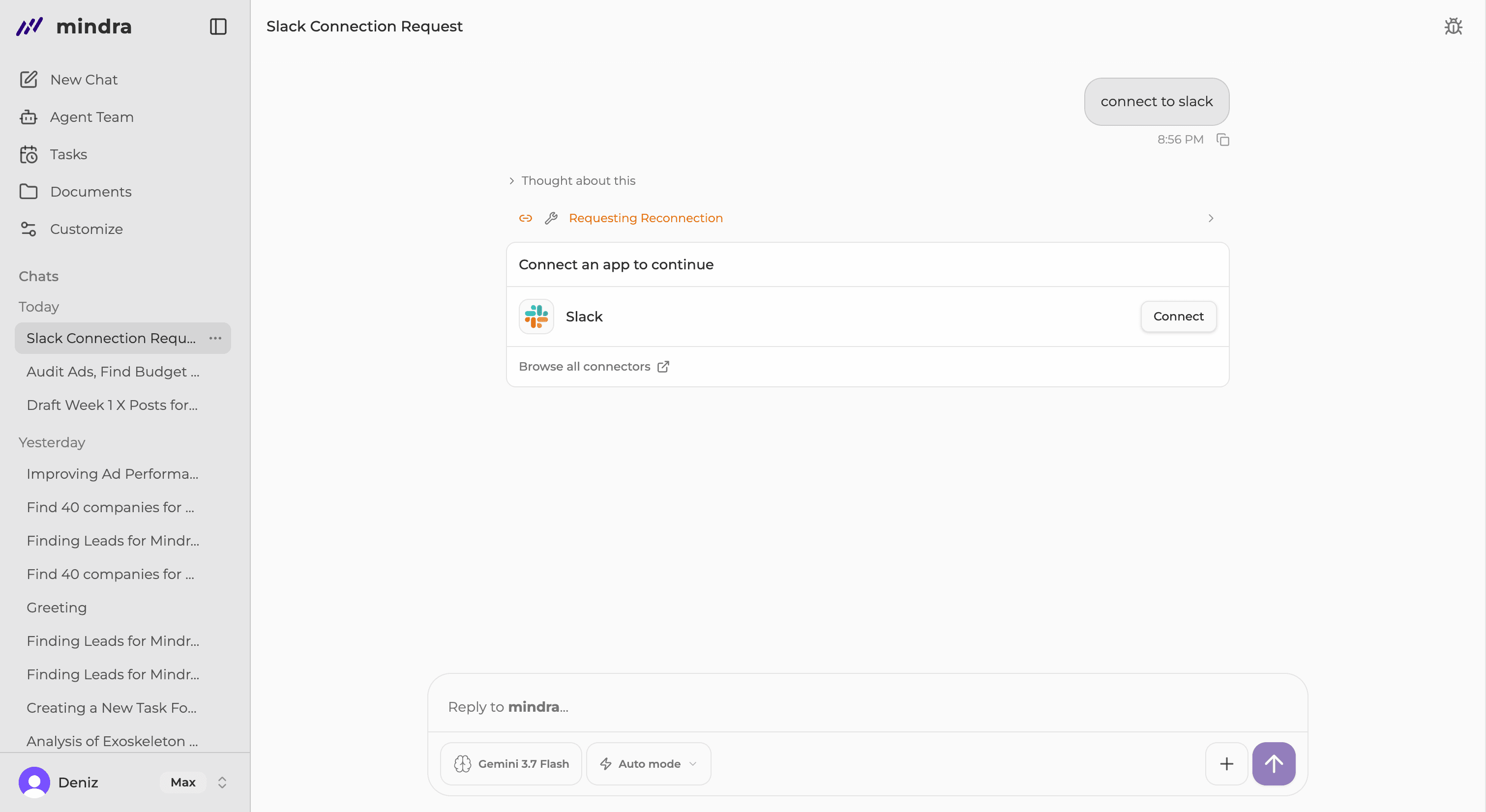
Mindra brings blockers to you
When a Slack request needs an approval, app connection, or document permission, Mindra sends the right person a private message with the action to take.
Complete the private card and Mindra continues the original request in its channel thread or direct message.
Set up Slack
Open Customize → Connectors → Slack
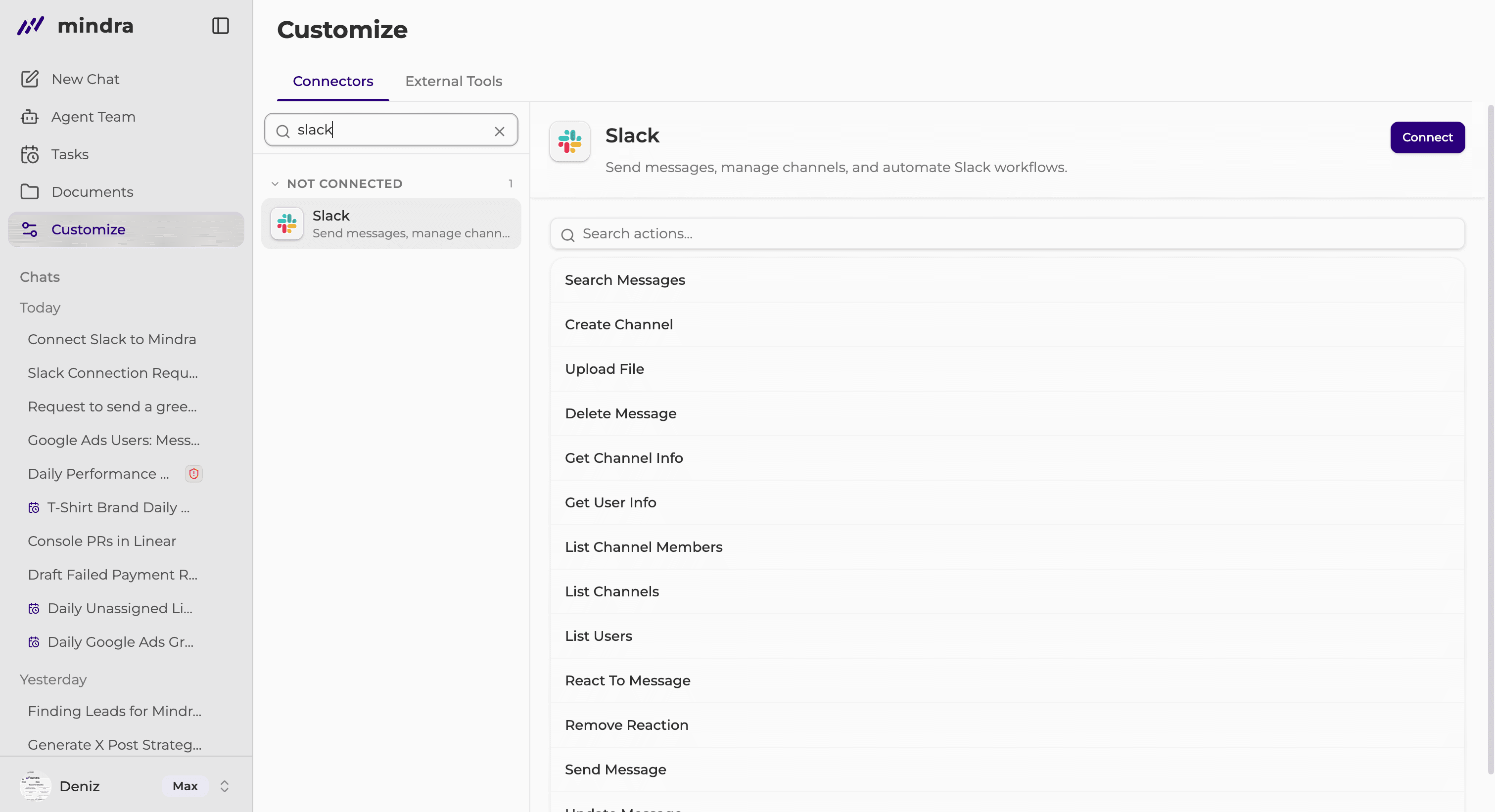
The first setup requests workspace-bot and personal permissions. Later members authorize only their personal Slack identity.
Approve the Slack permissions
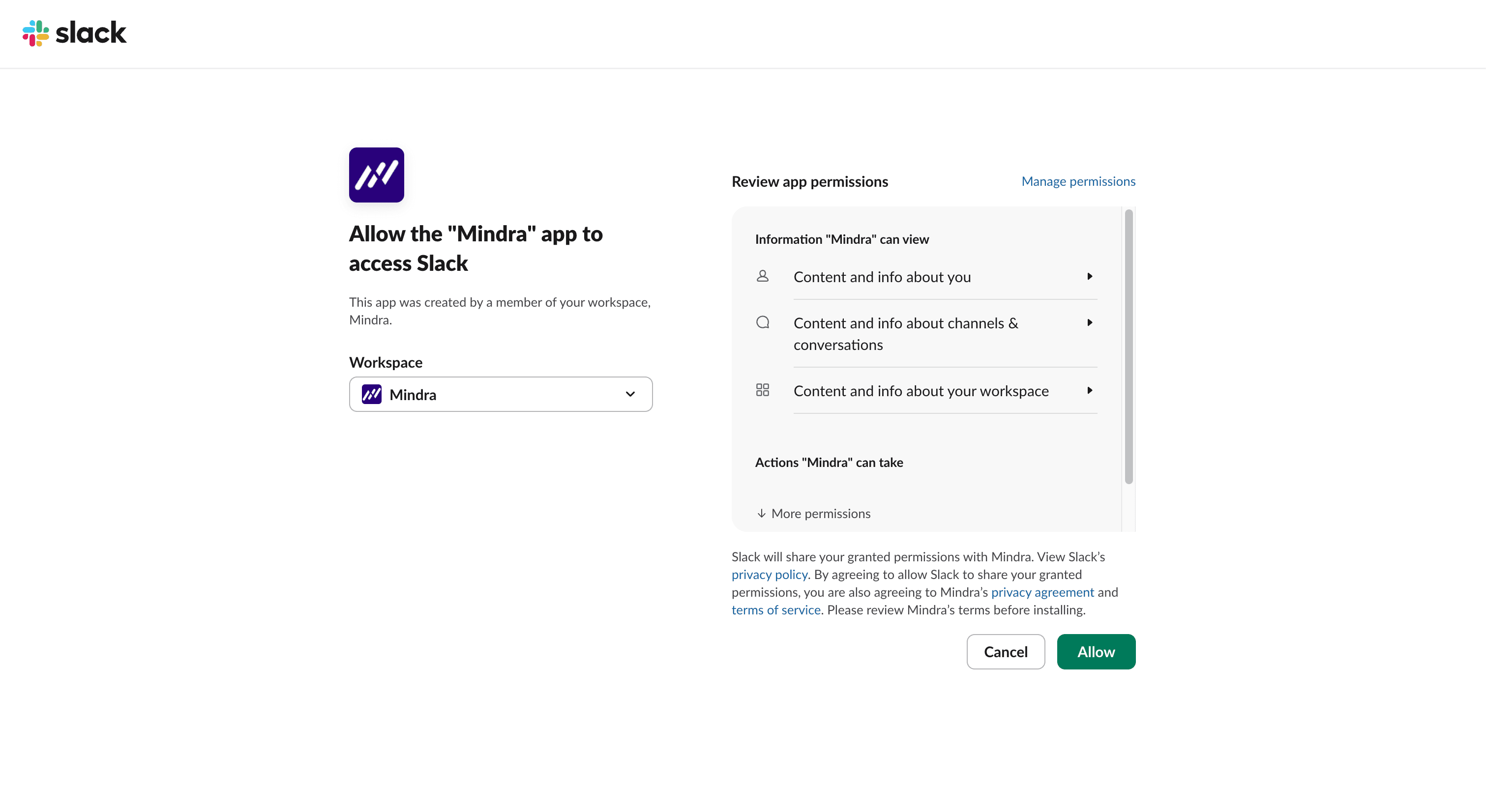
Choose the intended Slack workspace. Slack can require an administrator to approve the app.
Confirm both connection layers
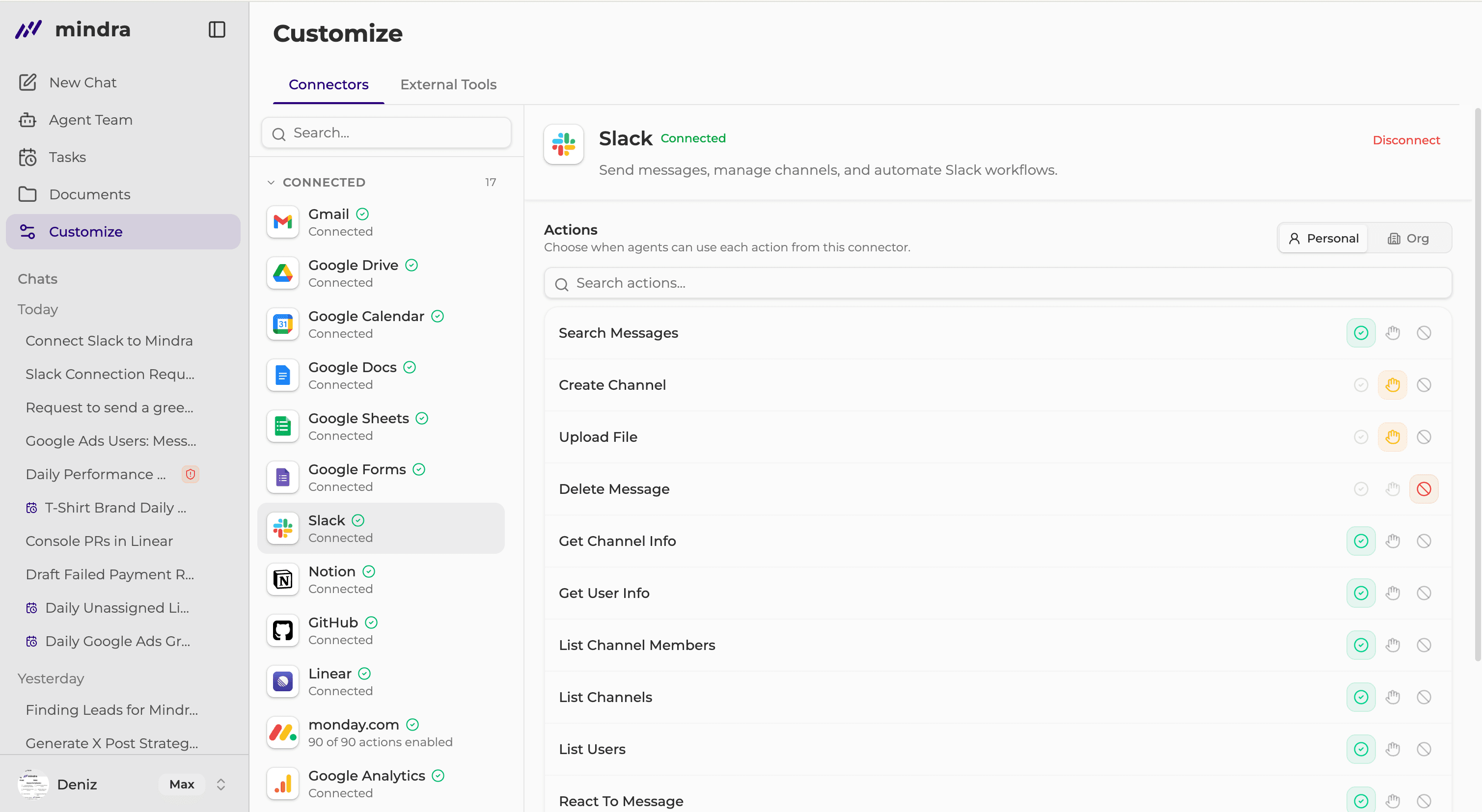
Your personal state should show Connected, and Workspace bot: reconnect required should not be visible.
Mention @Mindra in a channel and add it
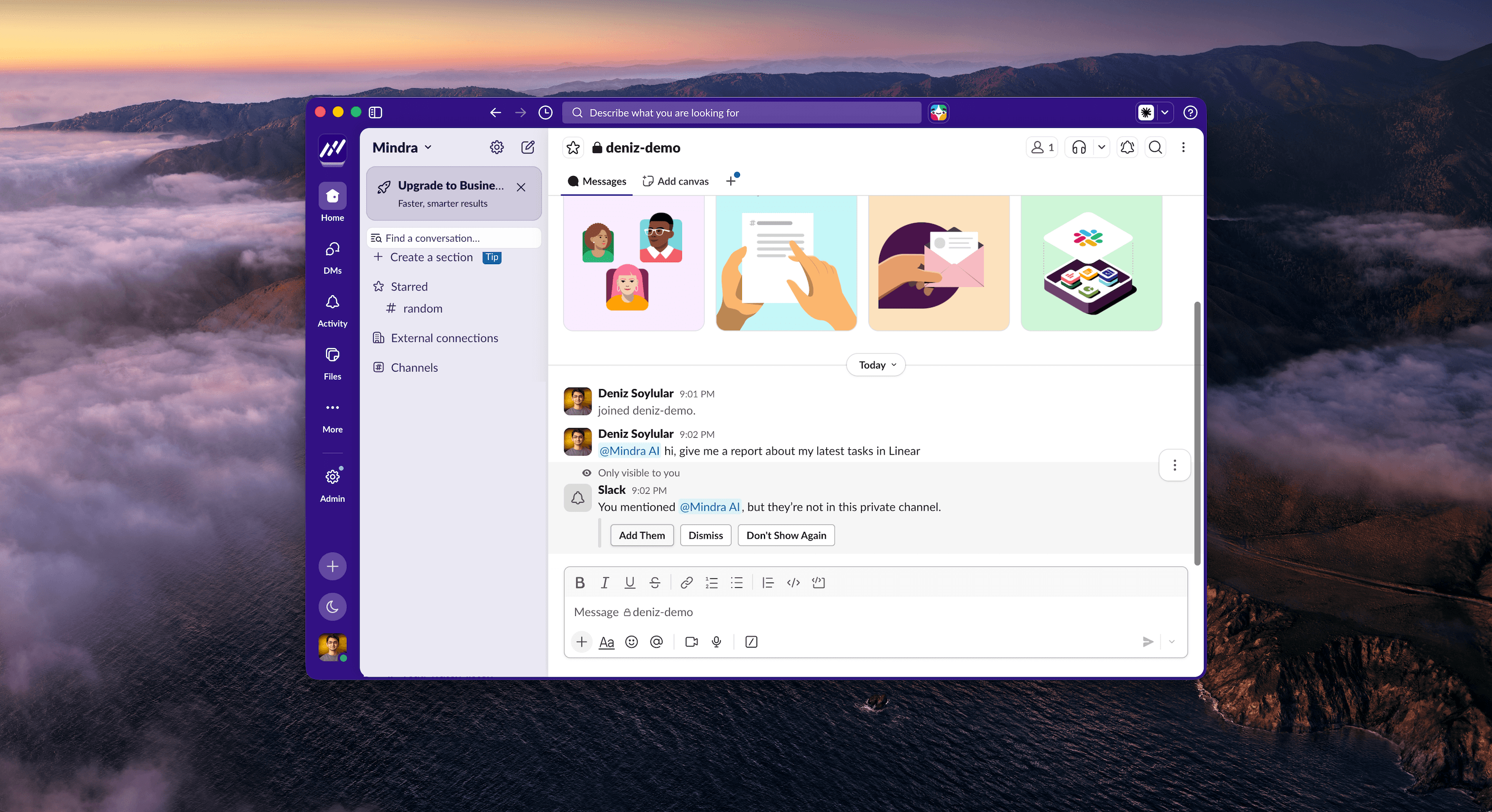
Include a new @Mindra mention for every new channel or thread request, including follow-up work. If Slack asks, add Mindra to the channel.
Follow the result in the same place
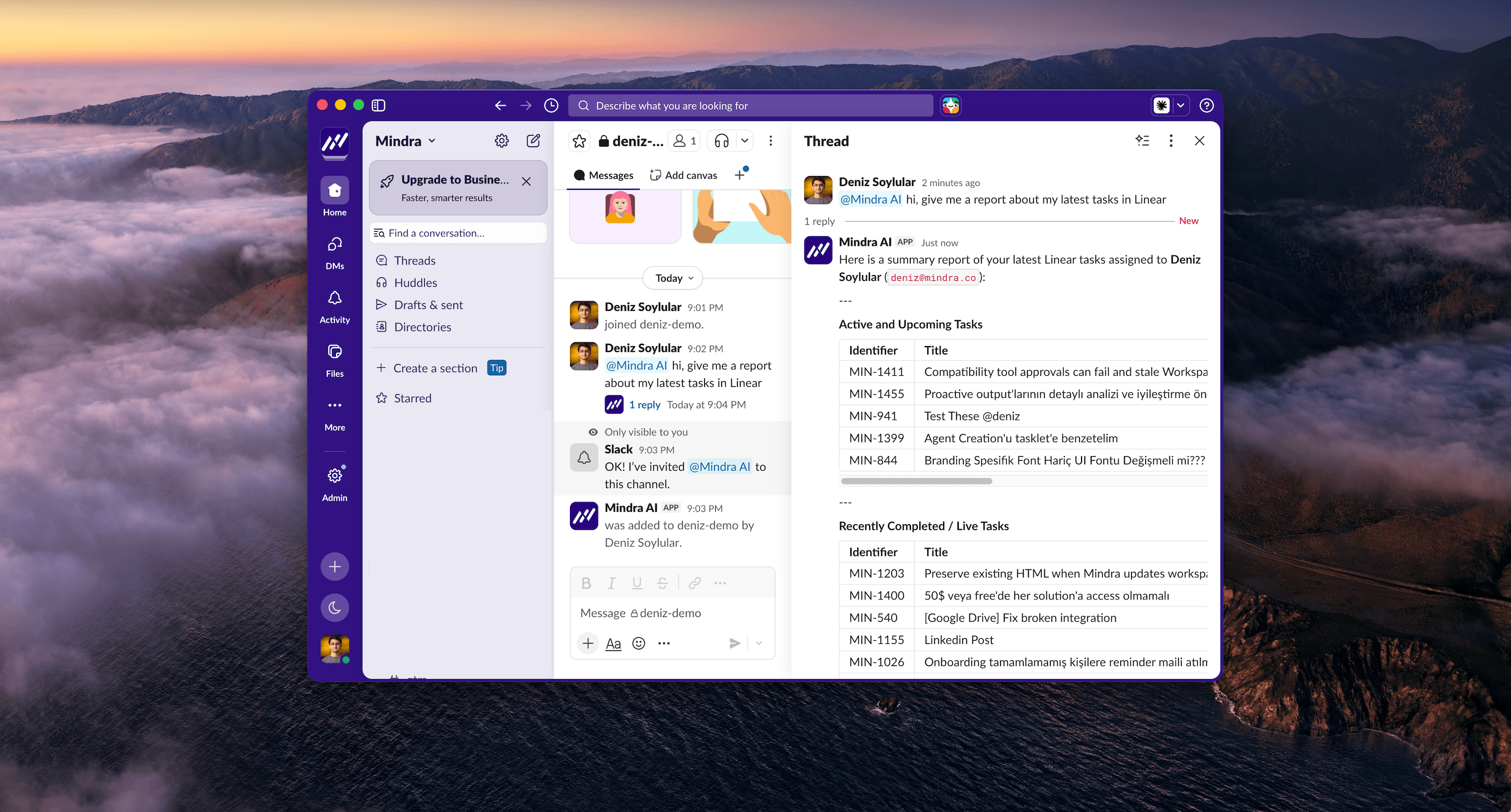
An hourglass reaction confirms the request was accepted. The final response returns to the same thread or DM.
Send a direct message without a mention
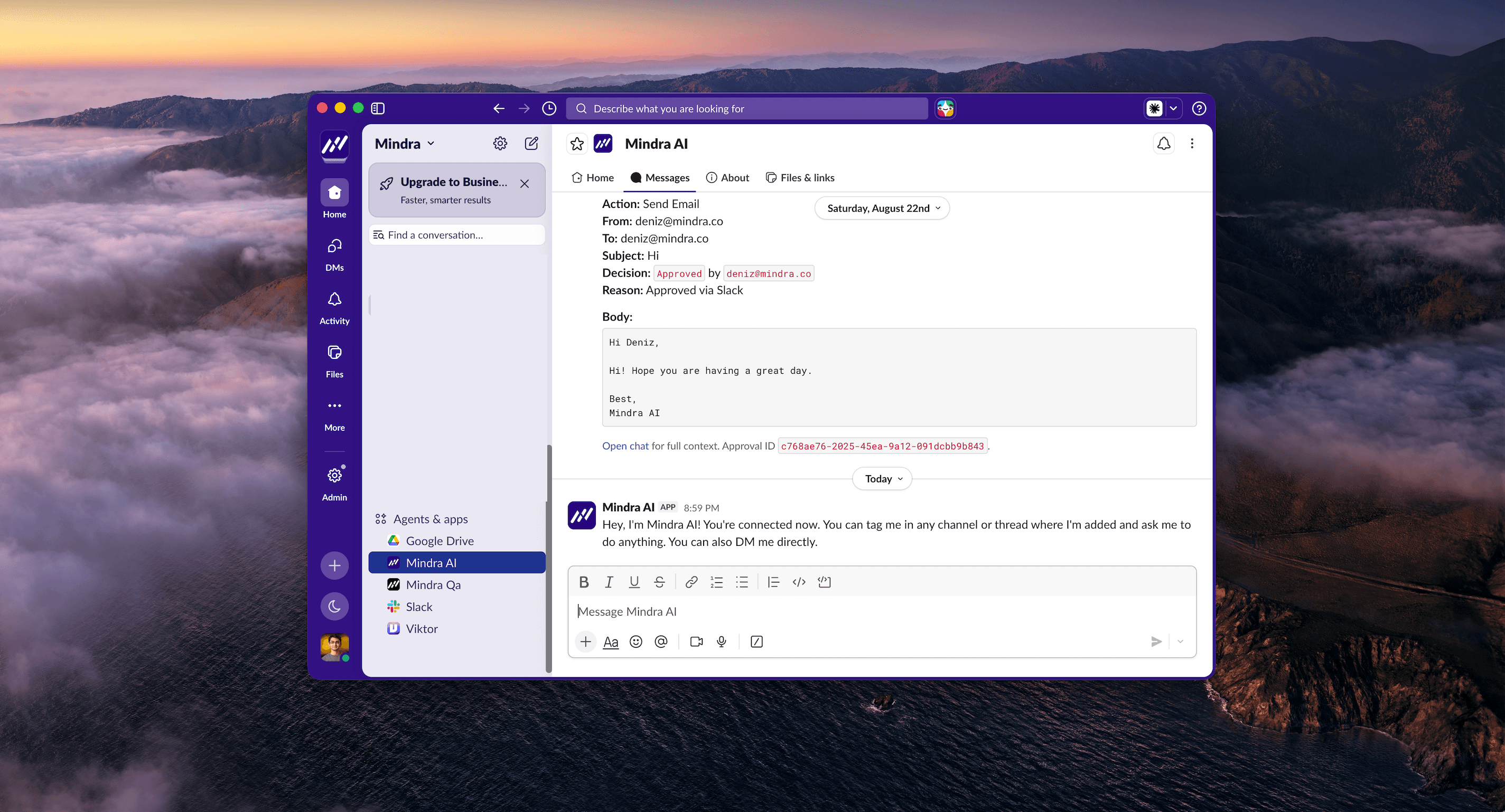
Workspace bot and My Slack
- Workspace bot
- Connects the Mindra organization to one Slack workspace.
- My Slack
- Links your Mindra member account to your own Slack identity.
Private blockers
- Approval
- The approver receives Approve, Reject, and sometimes Approve all in a private DM.
- Connector authorization
- The requester receives Connect provider in a private DM. The original request continues after connection.
- Document access
- The requester receives Allow and Not now in a private DM. Allow resumes the original request.
Disconnect your Slack identity
Disconnect removes only your personal Slack connection. It does not uninstall the workspace bot. Remove the bot from Slack app settings when the organization no longer wants it.
You’re done when...
Your personal Slack connection is Connected, the workspace bot is healthy, channel mentions receive same-thread replies, and DMs work without a mention.
Troubleshooting
A channel message is ignored
Include @Mindra in every new channel or thread request and confirm that the app is present in the channel.
Connect Slack appears
Complete your personal Slack authorization before trying the request again.
Workspace bot: reconnect required
Complete Reconnect workspace bot to restore the organization-level connection.
The app cannot be installed
Ask a Slack administrator to approve the app or check whether the workspace is already connected to another Mindra organization.
No private approval or access message arrives
Open the original request in Mindra’s web console and use the safe fallback link shown there.