
Enable a solution
Enable a ready-made set of agents, connections, and optional scheduled tasks.
Step-by-step guide
Open Agent Team → Solutions
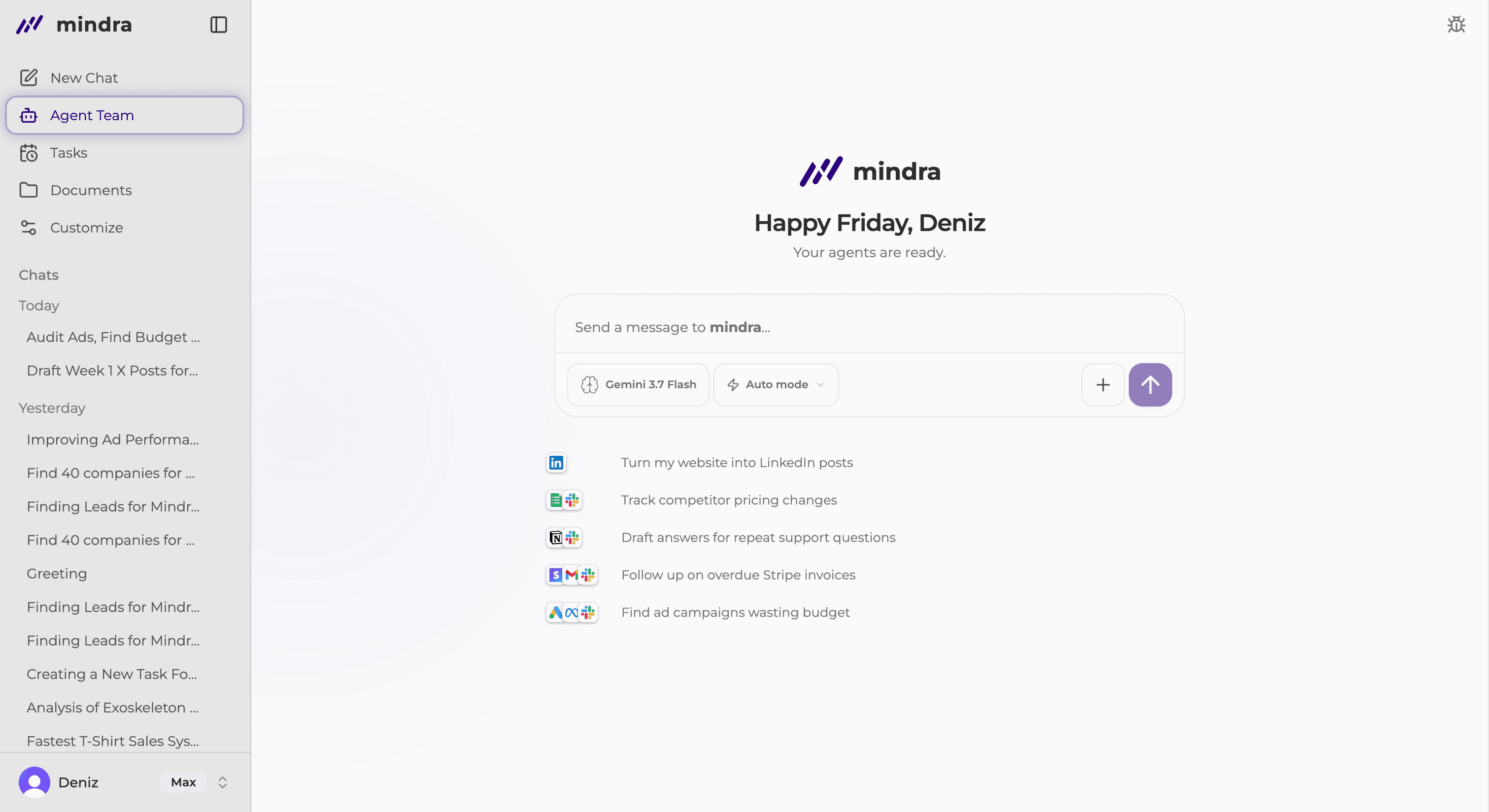
Find a solution
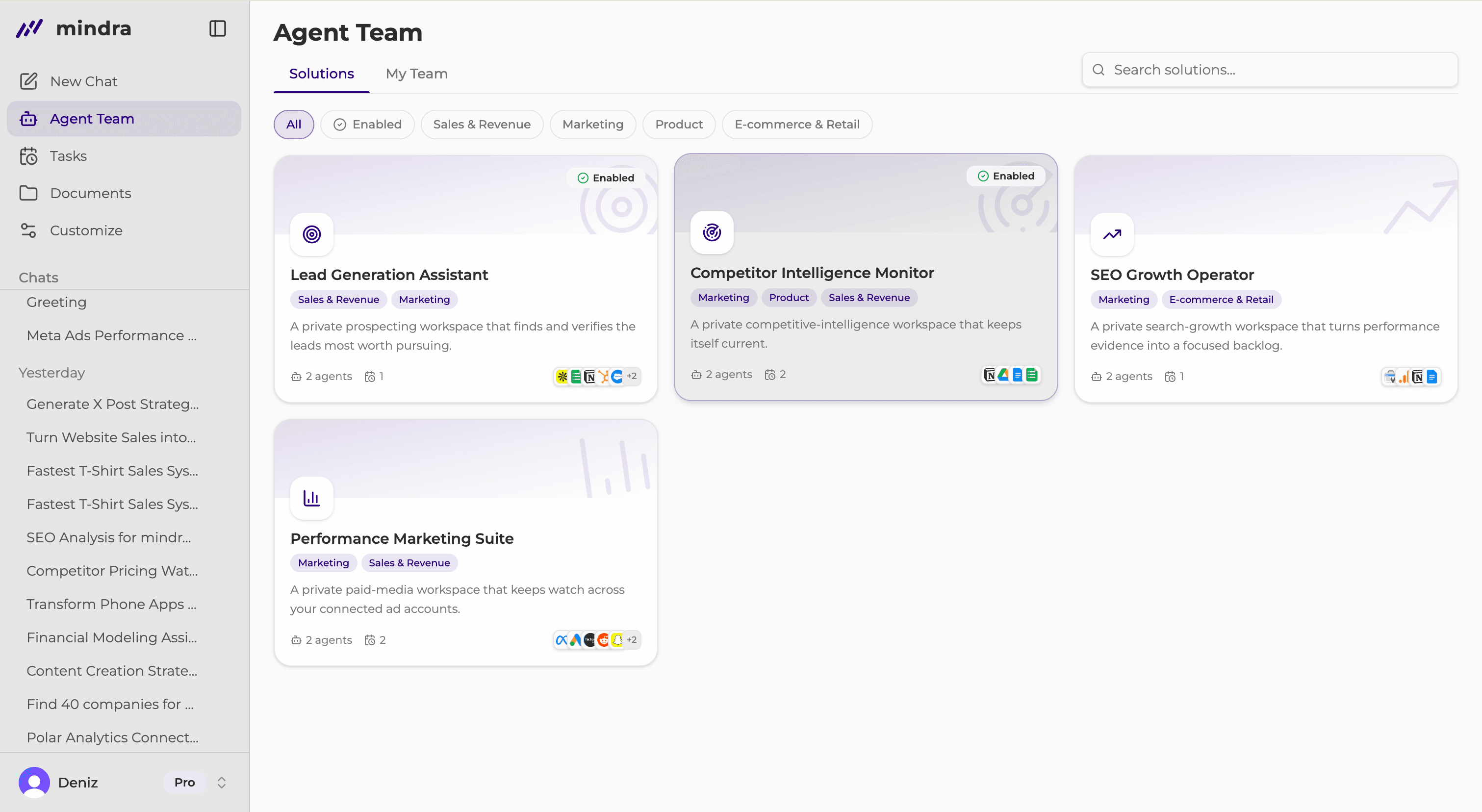
Use Search solutions or an industry filter, then open the solution card.
Enable the Solution
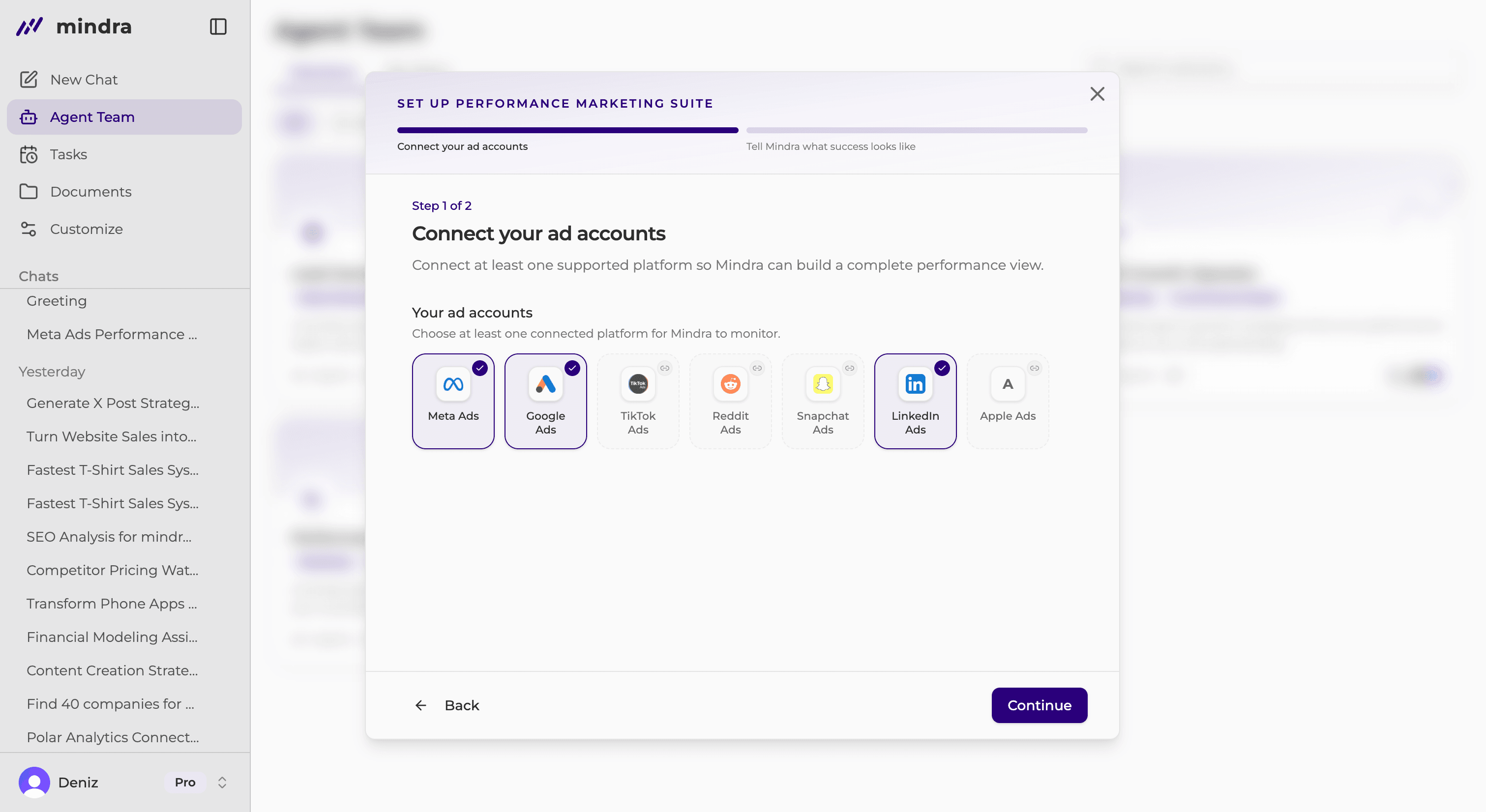
Leave at least one agent selected, choose any optional preset schedules, and complete the required Apps & connections. Select Enable solution, then confirm the agents in My Team and any selected schedules under Tasks.
Update or disable a solution
- Only the member who enabled an active solution can update its selection.
- Owners and admins can disable or re-enable a solution.
Warnings do not undo the solution
- A schedule setup warning does not disable agents that were created successfully.
- The solution can remain enabled when the first kickoff chat cannot start because credits are unavailable.
You’re done when...
The catalog card shows Enabled, selected agents appear in My Team, and selected schedules appear under Tasks.
Troubleshooting
Enable solution is unavailable
Select at least one agent and complete every required app group.
The solution enabled with warnings
Open View schedules and Tasks to find the schedule that needs attention. The enabled agents remain available.
The first chat did not start
Check workspace credits. The solution can still be enabled even when the kickoff chat cannot run.
You cannot update the selection
Only the member who enabled the active solution can update it. An owner or admin can disable and re-enable it.